
The Boxes Owed & End Dates report on Analytics shows your paid subscription boxes still marked unshipped, in boxes and dollars by month, and how many subscriptions are already set to stop renewing in this month and each of the next 11. Each part downloads as a file. If your accountant asks for deferred revenue, unearned revenue, or prepaid liability, Boxes Owed lists the paid boxes you haven’t marked shipped and what each one is worth.
In This Article
- Before You Start
- Open the Report
- Boxes Owed
- How a Box Is Valued
- Subscriptions Ending
- Download the Files
- What’s in the Files
- Common Questions
Before You Start
- Store admins and team members in the Finance or Finance (No exports) role can open the report.
- Store admins and Finance members can download its files. Finance (No exports) members see the report without its Export buttons.
- Team members in other roles, such as Shipping or Customer Support, can’t open it. Shipping and Customer Support members can export packing files on the Shipments page instead: see Exporting Shipment Contents and Shipment Totals.
Open the Report
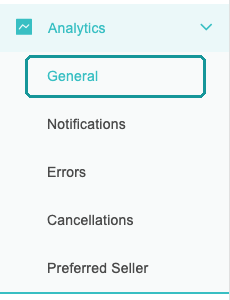
- In your seller portal, open Analytics › General.
- Click Boxes Owed & End Dates.
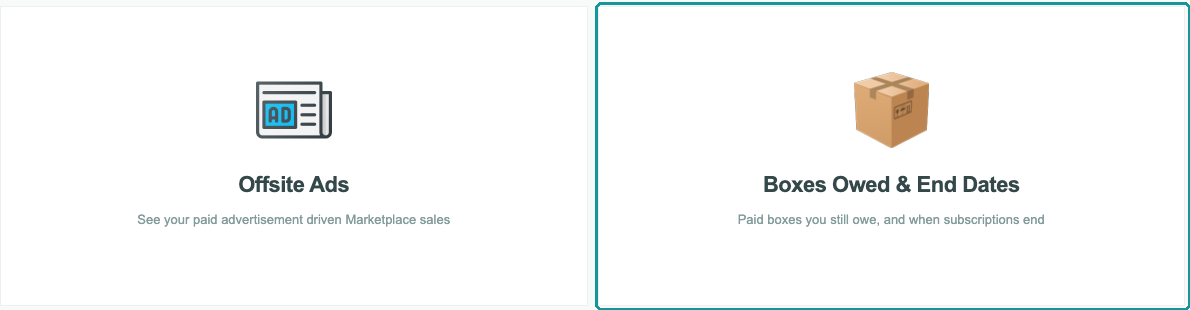
Each section loads on its own, with grey placeholders until its numbers arrive. The numbers are as of the moment you open the page, so reload it to see the latest.
Boxes Owed
A box is owed when it’s paid for and not yet marked shipped in Cratejoy. Boxes on cancelled or expired subscriptions count, because they’re paid for. Boxes on fully refunded, voided, or unpaid orders don’t. One-time items and boxes you added with Add Shipment aren’t counted.
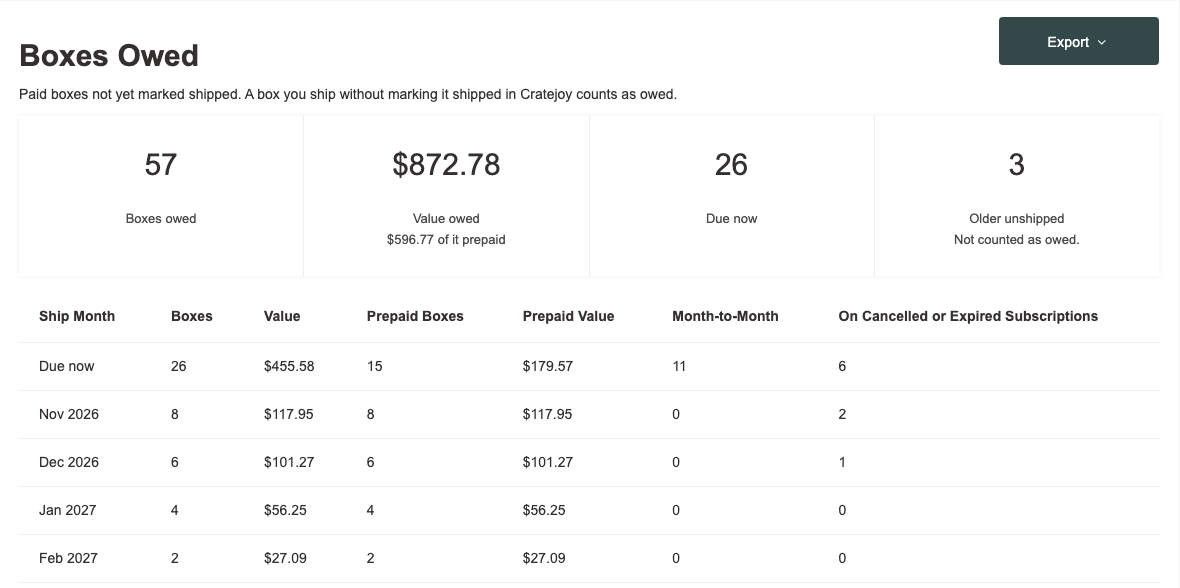
| Number | What it shows |
|---|---|
| Boxes owed | Every box you owe, due now and scheduled. |
| Value owed | What those boxes are worth (see How a Box Is Valued). The line under it is the prepaid part. |
| Due now | Owed boxes dated today or earlier that are in the next, current, or previous batch of their billing schedule. A box with no batch is due now if it’s dated in the last 60 days. |
| Older unshipped | Paid, unshipped boxes older than that: dated before the batches your schedules are working on or, with no batch, more than 60 days ago. These are often old records that were never marked shipped. They aren’t counted as owed, and the file lists them as Older, without a value, so you can check them. |
The table under the numbers has a row for Due now, then a row for each month with scheduled boxes. Its rows add up to the numbers above.
| Column | What it shows |
|---|---|
| Ship Month | Due now, or the month the boxes are scheduled for. |
| Boxes, Value | The owed boxes in that row, and what they’re worth. |
| Prepaid Boxes, Prepaid Value | The boxes paid for as part of a prepaid term, such as 3, 6, or 12 months, and their value. |
| Month-to-Month | The boxes paid for one at a time. |
| On Cancelled or Expired Subscriptions | How many of the row’s boxes are on cancelled or expired subscriptions. |
A box’s month is the month its batch renews, so a renewal box created the evening before the 1st counts in the new month. Boxes that don’t renew on a schedule use their target ship date.
If You See a Yellow Note
The report knows a box has shipped only when it’s marked shipped. If fewer than 90% of your boxes dated 14 to 120 days ago are marked shipped, a yellow note above the numbers says so, for example: “Only 60% of your boxes dated 14 to 120 days ago are marked shipped, so these counts may include boxes you’ve already shipped.”
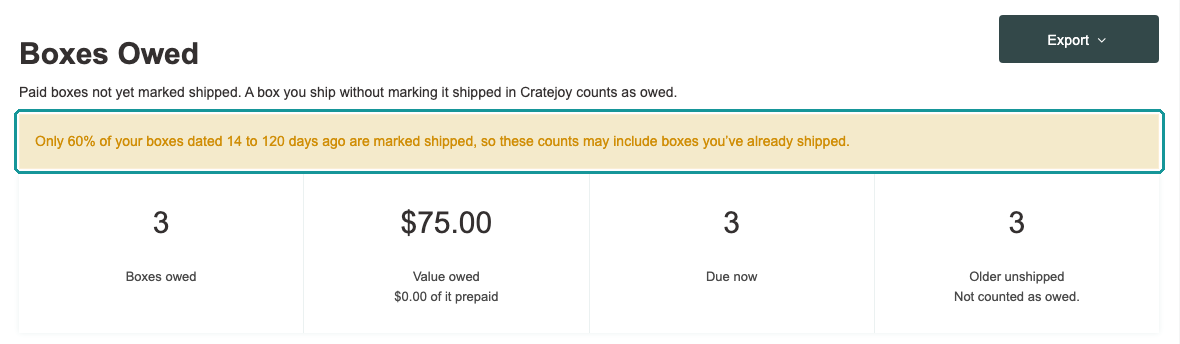
Mark boxes shipped on your Shipments page as you send them, and the counts follow. Bulk Marking as Shipped shows how to mark many at once.
How a Box Is Valued
Each box gets an even share of its order: the order total, including shipping and tax, less refunds and any one-time items on the order, split across all the boxes the order paid for. The cents are split so that an order’s boxes add up exactly to that amount.
For example, a 12-month prepay with an order total of $300.00 and no refunds is worth $25.00 a box. With 9 boxes still to ship, it adds 9 boxes and $225.00 to Value owed.
- Prepaid boxes were paid for together, in a term of more than one box, such as a 3-, 6-, or 12-month prepay.
- Month-to-month boxes were paid for one at a time.
- If a customer paid part of an order with a Cratejoy gift card, that part isn’t in the order total, so it isn’t in the box’s value.
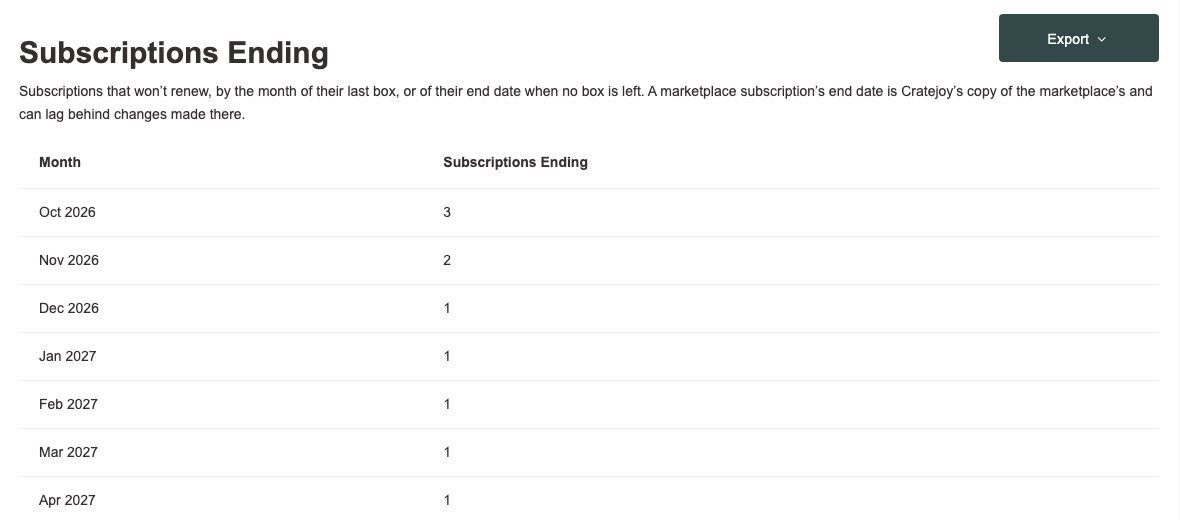
Subscriptions Ending
This section shows this month and the next 11, with how many subscriptions end in each. A subscription is counted when it won’t renew:
- It’s active, with auto-renew off.
- It’s cancelled or expired, and you still owe it boxes.
- It’s active, and your store has renewals turned off.
It counts in the month of its last box still owed, or, with no box left, in the month of its end date. Subscriptions set to renew aren’t counted, and neither are paused, past due, or unpaid ones. So this isn’t a forecast: it shows the subscriptions already set to end.
A marketplace subscription’s end date is Cratejoy’s copy of the marketplace’s, and it can lag behind changes made there.
Download the Files
- In the section you want, click Export, then CSV - Boxes Owed or CSV - Subscriptions Ending.
- A banner at the top of the page shows “Boxes Owed - This export is in progress.” When the file is ready, it changes to “Boxes Owed - Export Complete! Download now”.
- Click Download now, or use the link we email to whoever clicked Export. The subject is “Boxes Owed export is complete!” or “Subscriptions Ending export is complete!”

Each file is as of the moment it’s made, and its As Of column says when. To keep a figure for a month end or year end, download Boxes Owed that day and save the file.
What’s in the Files
Boxes Owed has one row per box: Due now first, then Scheduled, then Older, each by date.
| Columns | What they show |
|---|---|
| Shipment ID, Box Date, Bucket | The box, the day its batch renews (or its target ship date), and Due now, Scheduled, or Older. |
| Customer ID, Customer Name, Customer Email | Who the box is for. |
| Order ID, Order Date | The order that paid for it. |
| Subscription ID, Subscription Status, Auto-Renew | The subscription, its status, and whether it renews. |
| Term, Prepaid, Box (N of M) | The term the order paid for, Yes or No for prepaid, and the box’s number in that term, such as 4 of 12. |
| Product, Variant, SKU | What goes in the box. |
| Boxes on Order, Shipped, Unshipped, Cancelled | How many boxes the order paid for, and how many of them are shipped, unshipped, and cancelled. |
| Order Total, Refunded, Value per Box | The order’s total and refunds, and this box’s value. Value per Box is blank on Older rows, so the column adds up to Value owed. |
| As Of | When the file was made, in your store’s time zone. |
| One column per variant type, such as Size | The variant’s values, after all the columns above. |
Subscriptions Ending has one row for each month and product variant with subscriptions ending: Month, Product, Variant, SKU, Subscriptions Ending, and As Of, then one column per variant type. A subscription counts under the product in its last box, or, with no box left, its current product. Each month’s rows add up to that month in the report.
Common Questions
Can I see what I owed at the end of last month?
No. The report shows what you owe now. To keep a figure for a date, download Boxes Owed that day: its As Of column records when.
Why does a box I’ve shipped still count as owed?
It isn’t marked shipped in Cratejoy yet. Mark it shipped on your Shipments page, and it leaves the count the next time you open the report.
Why is a box’s date different from my Shipments page?
The report dates a box by the day its batch renews. Your Shipments page shows the box’s target ship date, which can be the day before, for example September 30 for an October 1 renewal.
Does Subscriptions Ending forecast renewals?
No. It counts only subscriptions already set to end. Subscriptions that will renew aren’t in it.
A section says “This section took too long to load.”
Click Try again. If it keeps happening, contact support.
Why can’t a team member open the report?
Only store admins and the two Finance roles can open this report. A store admin can change a team member’s role under Account › Team.
Related Articles
Questions? Contact support.