
Shipment Contents and Shipment Totals are two packing files on your Shipments page. Shipment Contents lists every item in every box for the ship dates you choose, from all your billing schedules and one-time orders, in one file. Shipment Totals adds those items up by product and variant, so you know how many of each size to pack or order.
In This Article
- Before You Start
- Export a Packing File
- Choosing the Dates
- When Your File Is Ready
- What’s in Shipment Contents
- What’s in Shipment Totals
- Common Questions
Before You Start
You can export these files if you’re a store admin or a team member in the Shipping or Customer Support role. They’re the same people who can export shipments today. A store admin sets each team member’s role under Account › Team.
Export a Packing File
- In your seller portal, click Shipments.
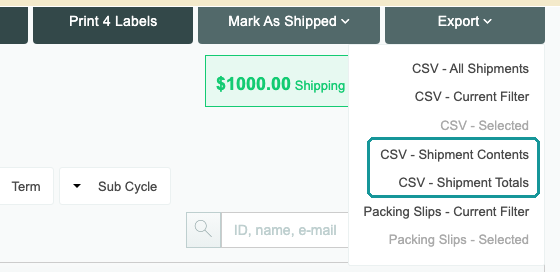
- Click Export, then CSV - Shipment Contents or CSV - Shipment Totals.
- Under Ship date, set From and To, or click a preset. A file covers up to 24 months.
- Under Shipments, choose Unshipped for the boxes you still have to send, or Unshipped and shipped to include boxes already marked shipped.
- Click Export.
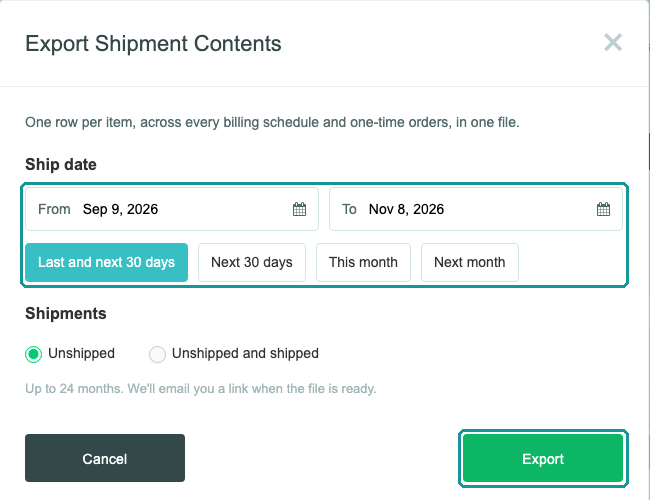
Shipment Totals opens the same window, titled Export Shipment Totals.
Choosing the Dates
The window opens on Last and next 30 days, so the batch you’re packing is always in the range. Each preset counts from today in your store’s time zone.
| Preset | From and To |
|---|---|
| Last and next 30 days | 30 days ago to 30 days from today. It often catches the first boxes of your next batch too. |
| Next 30 days | Today to 30 days from today. |
| This month | The first to the last day of this month. |
| Next month | The first to the last day of next month. |
The file picks a subscription box by the day its batch renews, the way your Shipments page groups boxes into batches. So This month or Next month gives you one month’s batches, which is usually what you want for Shipment Totals. Boxes that don’t renew on a schedule, such as one-time orders, are picked by their target ship date.
The file’s Target Ship Date column shows the date your Shipments page shows. A renewal box created the evening before its batch renews can show that earlier date, for example September 30 in October’s file.
When Your File Is Ready
We make the file in the background, so you can keep working. A banner at the top of the page shows that it’s in progress.

When the file is ready:
- The banner changes to “Shipment Contents - Export Complete! Download now”. Click Download now.
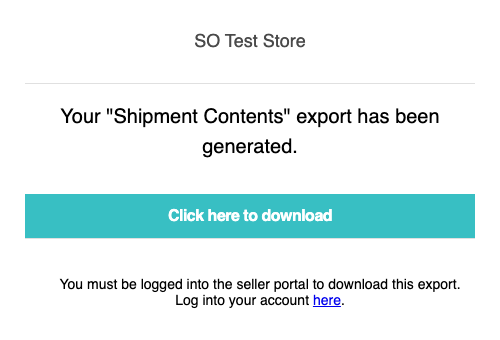
- We email a link to whoever clicked Export. The subject is “Shipment Contents export is complete!” or “Shipment Totals export is complete!” The link works when you’re logged in to your seller portal.

The file’s name carries its dates, for example shipment_contents_2026-10-01-2026-10-31, followed by a number. If you click Export again with the same choices while the file is being made, the banner reads “Shipment Contents - This export is already in progress.” You still get one file.
What’s in Shipment Contents
Shipment Contents has one row for each product variant in each box, with its quantity. Every billing schedule and one-time order is in the same file. Cancelled boxes and cancelled items are left out. Boxes on cancelled or expired subscriptions stay in, because they’re paid for and you still owe them.
| Columns | What they show |
|---|---|
| Shipment ID, Target Ship Date, Shipment Status, Shipped Date, Tracking Number | The box: its ID, the date your Shipments page shows, Unshipped or Shipped, and for a shipped box, when it shipped and its tracking number. |
| Customer ID, Customer Name, Customer Email | Who the box is for. |
| Ship To, Company, Address 1, Address 2, City, State, Zip, Country, Phone | Where it goes. |
| Order ID, Order Date, Order Type | The order that paid for the box. Order Type is New, Renewal, One-time, or Seller-added. |
| Subscription ID, Subscription Status, Auto-Renew, Term | The subscription, its status, whether it renews, and the term the order paid for, such as 12 Month Prepay. |
| Box (N of M) | This box’s number in that term, for example 4 of 12. |
| Boxes Remaining | How many later boxes from the same order are still to ship. |
| Subscription Box # | This box’s number over the subscription’s whole life, counting every box it has had. It’s the number your Shipments page’s Sub Cycle filter uses. |
| Product, Variant, SKU, Quantity | What goes in the box, and how many. |
| Item Type | Subscription box, Add-on (an extra item that rides in a subscription box), One-time item, or Seller-added box (a box you added with Add Shipment on a customer’s page). |
| Gift, Gift Message, Gift Recipient | Whether it’s a gift, the message, and who it’s for. The message prints on the order’s first box and on one-time items, not on every box. |
| One column per variant type, such as Size or Color | Each variant’s values in their own columns. |
The variant-type columns always come last, so the other columns stay in the same place from one file to the next.
What’s in Shipment Totals
Shipment Totals has one row for each product variant and item type, for the dates and shipments you chose:
- Product, Variant, and SKU: what to pack.
- Item Type: the same types as in Shipment Contents.
- Units: how many to pack.
- Shipments: how many boxes they go in.
- One column per variant type, such as Size or Color.
Rows are sorted by product, then variant. For the same dates and choice, a variant’s Units equals the sum of its Quantity in Shipment Contents. For example, from a test store:
| Product | Variant | SKU | Item Type | Units | Shipments | Color | Size |
|---|---|---|---|---|---|---|---|
| SO Monthly Box | L / Blue | SOMB-L-BLUE | Subscription box | 3 | 3 | Blue | L |
| SO Monthly Box | L / Red | SOMB-L-RED | Subscription box | 2 | 2 | Red | L |
Common Questions
Why is Export greyed out?
A message under the dates says what to fix:
- “Enter a date like Oct 10, 2026.” The date can’t be read. Type it that way, or pick it from the calendar.
- “The end date is before the start date.” Swap the dates.
- “Choose a range of 24 months or less.” Export a longer period in parts.
Can I export boxes I’ve already shipped?
Yes. Choose Unshipped and shipped. For a long history, export a year or two at a time.
Do my other exports and packing slips change?
No. CSV - All Shipments, CSV - Current Filter, CSV - Selected, and both packing-slip exports work as before.
Where are customer notes and subscription metadata?
They aren’t in these files. CSV - All Shipments still includes them.
Related Articles
Questions? Contact support.