
The Customers page lists every customer of your store. Five filters narrow that list to the customers you want to reach: who used a coupon, how much they’ve spent with you, the status of their subscription, which product or variant they subscribe to, and how long they’ve been subscribed. The count line tells you how many match, and Export CSV - Current Filter downloads exactly those customers.
In This Article
- Before You Start
- Open the Filters
- What Each Filter Matches
- Combine Filters and Read the Count
- Export the Customers You See
- On the Subscriptions Page
- How Fresh the Filters Are
- Common Questions
Before You Start
Any store admin or team member who can open Customers can use the filters. To export customers, you need to be a store admin or a team member in the Finance role. A store admin sets each team member’s role under Account › Team.
Filtering and exporting only read your customers. Nothing about a customer, coupon, or subscription changes, and you can export as often as you like.
Open the Filters
- In your seller portal, click Customers.
- Under the page title, click a filter to open it: Coupon Used, Lifetime Spend, Subscription Status, Subscription Product, or Subscribed For.
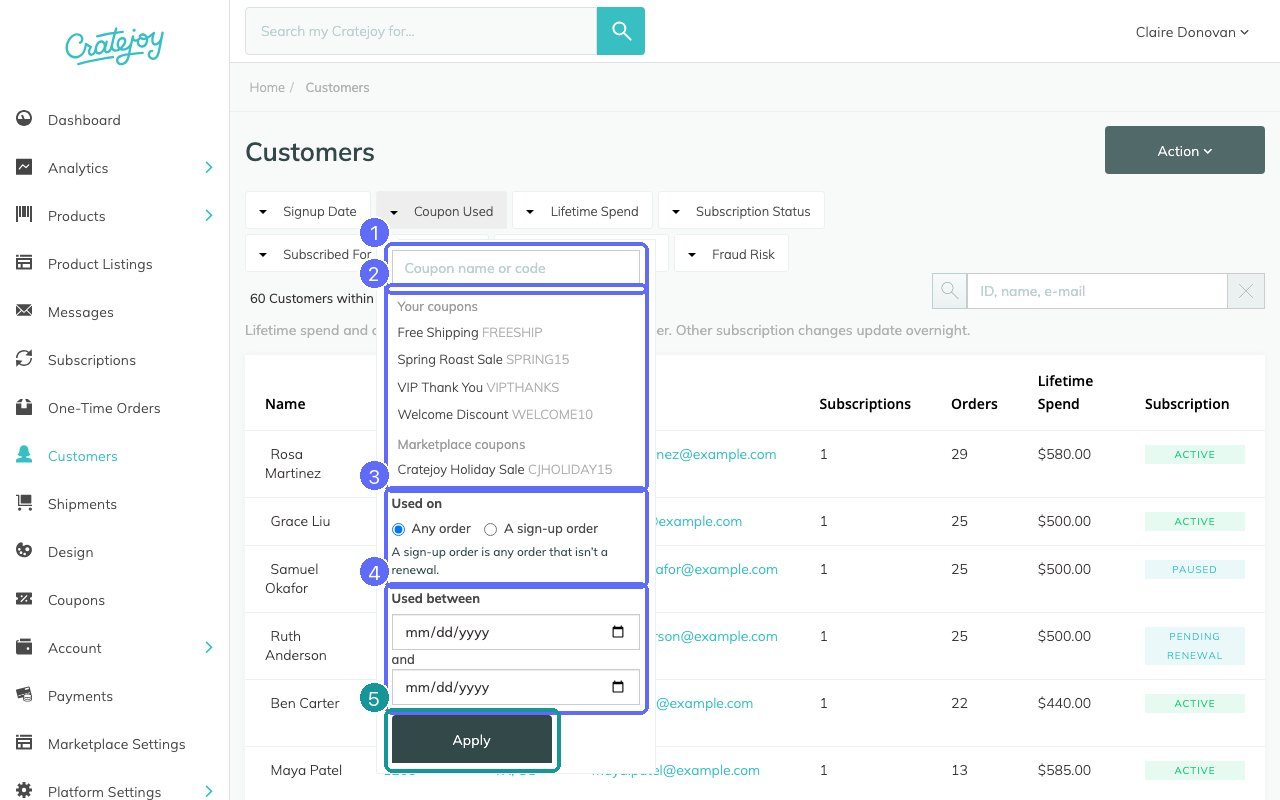
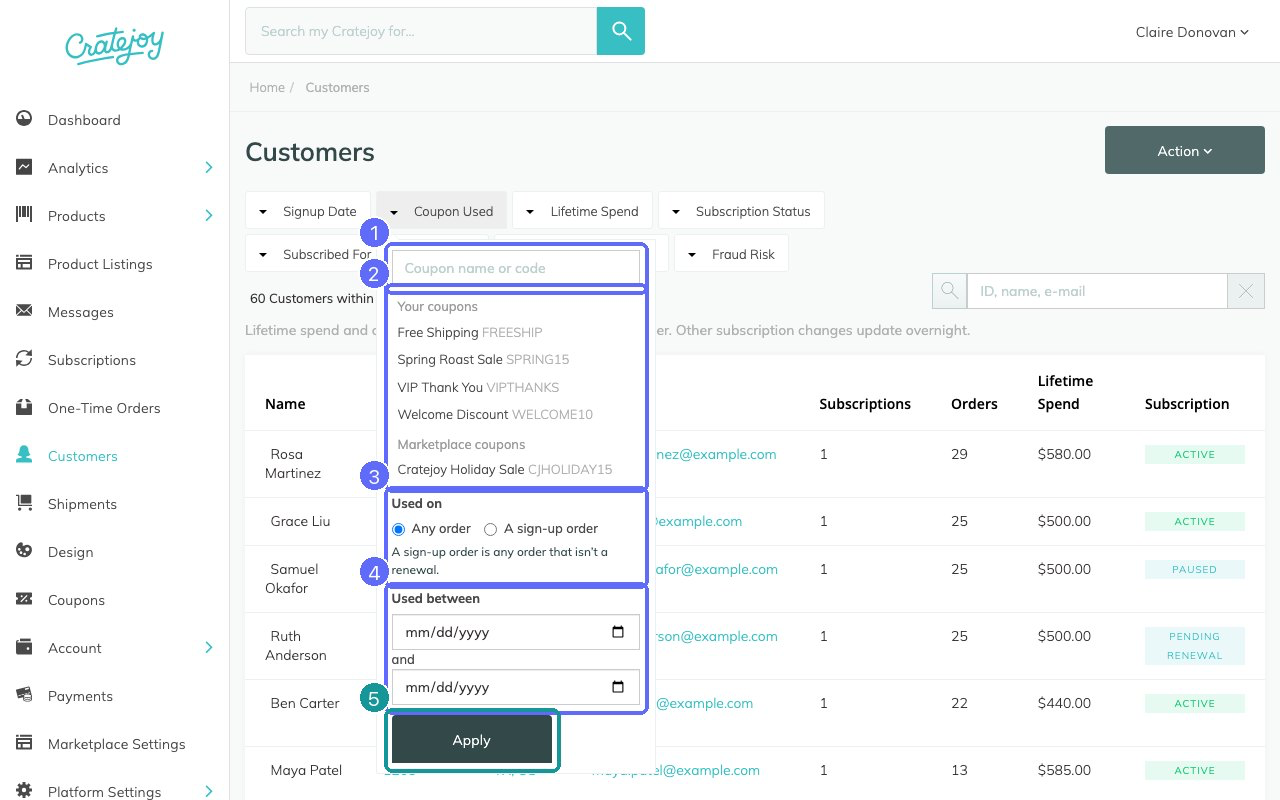
- Make your choice and click Apply. The filter turns into a chip with your choice and an × that clears it.
What Each Filter Matches
| Filter | A customer is listed when |
|---|---|
| Coupon Used | They used that coupon on at least one paid order at your store. Every code of the coupon counts. Search a coupon by name or code; your own coupons sit under Your coupons, and Cratejoy Marketplace coupons used at your store sit under Marketplace coupons. Choose Used on any order or a sign-up order (any order that isn’t a renewal), and optionally Used between two dates, both included, in your store’s time zone. |
| Lifetime Spend | What they’ve spent at your store is between the minimum and maximum you set, both included. It counts products after discounts and refunds, and excludes shipping and tax. $0.00 is a real bound: a customer who never bought has spent $0.00. Click the Lifetime Spend column header to sort highest or lowest first. |
| Subscription Status | Any of their subscriptions at your store has a status you ticked: Active, Paused, Past Due, Unpaid, Cancelled, or Expired. Pick as many as you like. Active also covers Pending Renewal and Renewing; Unpaid also covers Unpaid (Order Failed). |
| Subscription Product | They have a subscription to that product, in any status. Click Variants beside a product to pick one variant, or search by product, variant, or SKU. A customer who switched variants matches the new one only. The gift version of a variant is its own choice, marked (gift). |
| Subscribed For | Their oldest active, past due, or paused subscription at your store started at least that many months ago. Choose 3+, 6+, 12+, or 24+ months, or type any number. Time on a subscription that has since been cancelled doesn’t count. |
Combine Filters and Read the Count
Set as many filters as you like. Every filter must be true of the same customer, and a status with a product or variant must be true of the same subscription: a customer with a cancelled subscription to one product and an active subscription to another isn’t an “Active” customer of the first.
The count line above the list, for example “60 Customers within this filter.”, counts every matching customer on every page, not just the 25 on screen.
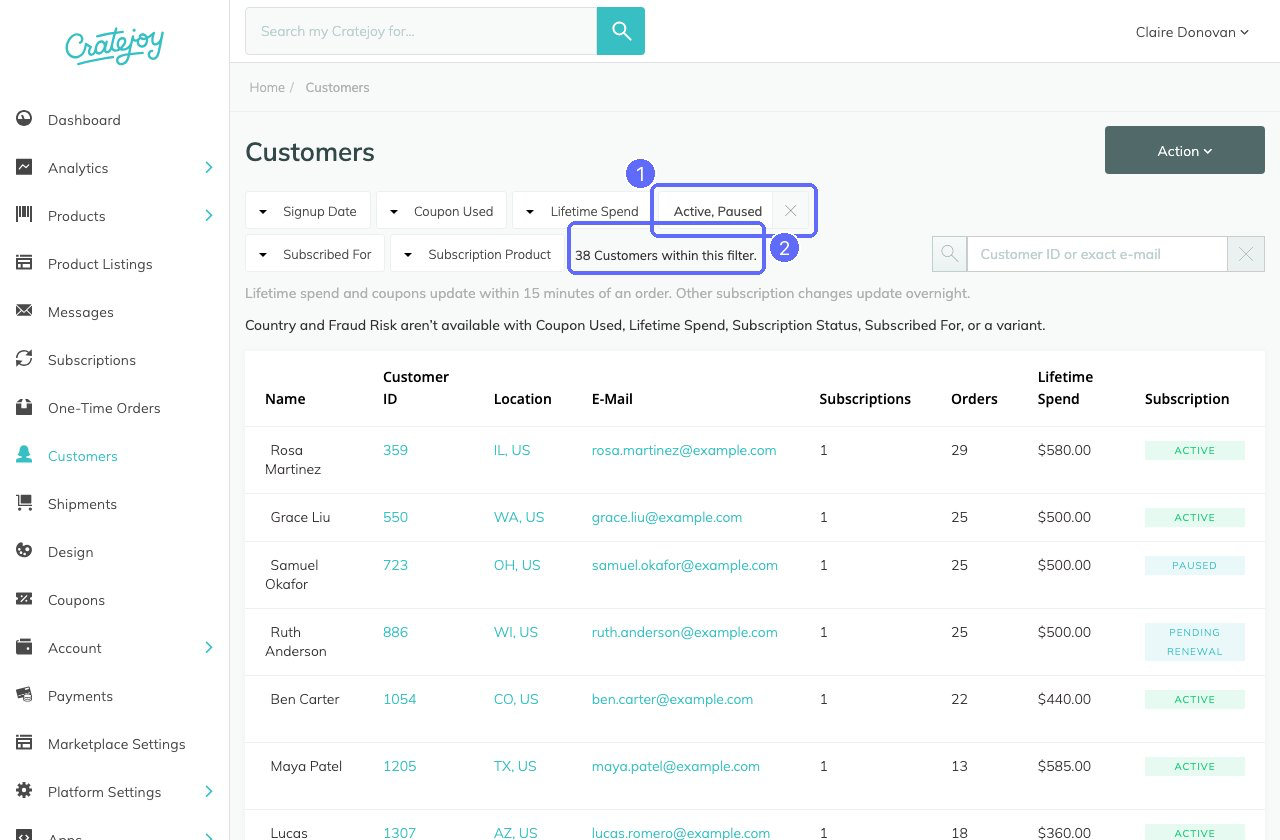
While Coupon Used, Lifetime Spend, Subscription Status, Subscribed For, or a variant is set, the Country and Fraud Risk filters are hidden, the list sorts by Customer ID or Lifetime Spend, and the search box finds one customer by their ID or full email address. Clear those filters and the page is back to the way it was.
Export the Customers You See
- Set your filters, and press Enter if you typed a search.
- Click Action, then Export CSV - Current Filter. It takes exactly the customers the list shows, on every page. Export CSV - All Customers takes every customer, whatever the list shows.
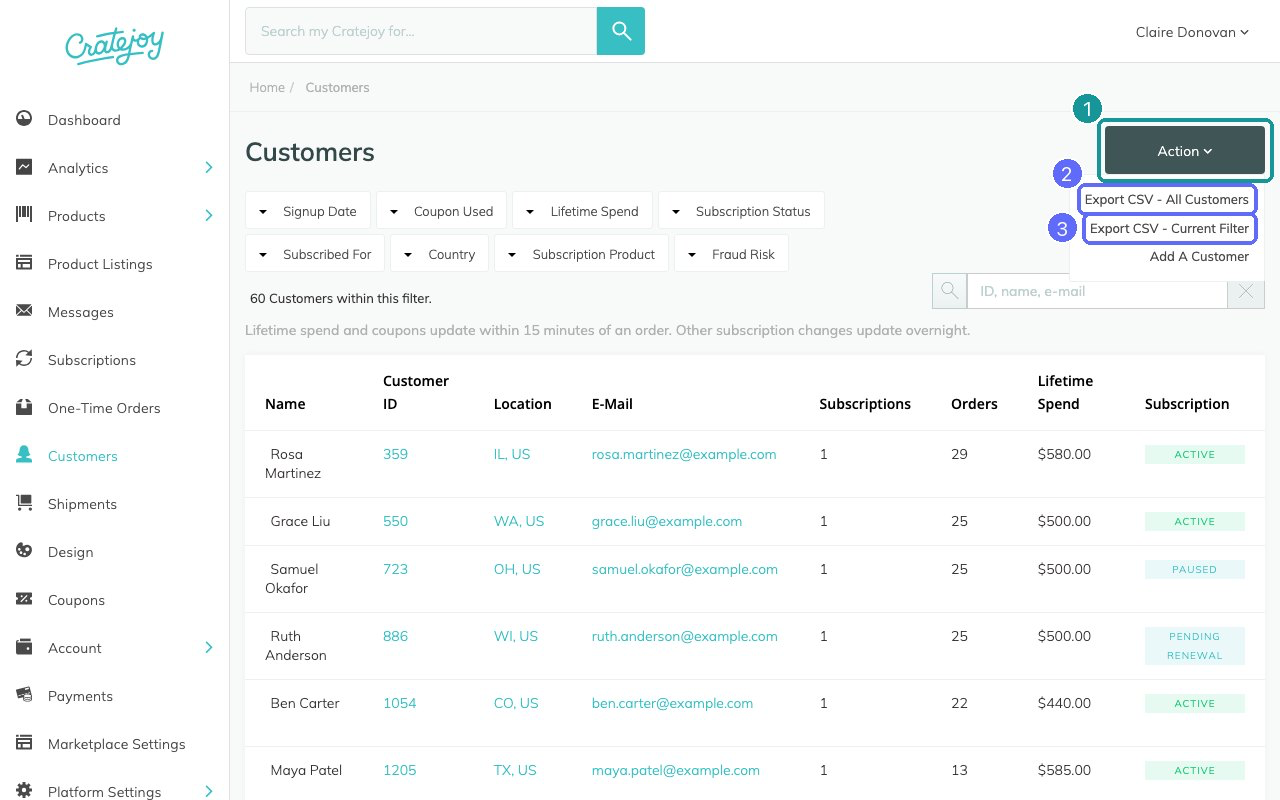
We make the file in the background. A banner at the top of the page shows that it’s in progress, then changes to “Export Complete! Download now”. We also email a link to whoever clicked Export, from Cratejoy Admin (notifications@cratejoy.com) with the subject “Customers export is complete!”. The link works when you’re logged in to your seller portal.
The file has one row per customer, newest first, with the same columns as before: customer ID, name, email, address, lifetime spend (as total_revenue, in cents), orders, subscriptions, subscription status, and more. See Customer Export for every column.
On the Subscriptions Page
On Subscriptions, the Status filter now takes several statuses at once, and both Current Filter exports end with a SKU column, so you can pick Active and Paused, pick one product’s variant, and export exactly that SKU’s active and paused subscribers.
How Fresh the Filters Are
The note under the filter row says it: lifetime spend and coupons update within 15 minutes of an order. Other subscription changes update overnight. So a customer who cancelled this afternoon stays in the Active list until tomorrow morning, while the Subscription column already shows Cancelled.
Common Questions
Why does a customer show up under two statuses?
They have subscriptions in two statuses, so they appear in both lists, and the Subscription column says Mixed.
Why can’t I find a customer by name while a filter is set?
With one of the new filters set, the search box finds a customer by their ID or their full email address. Clear the filters to search by name.
The count line says counting took too long.
On a very large store the count can time out. The list and the pager keep working, and Export CSV - Current Filter still includes every customer in the filter.
Why don’t I see Export under Action?
Exporting customers needs the store admin or Finance role. A Customer Support member can filter but sees only Add a Customer under Action.
Related Articles
Questions? Contact support.


