
When you change a subscription product’s price, Cratejoy asks who pays the new price: new subscribers only, or your existing subscribers too. Existing subscribers keep what they pay until the change you schedule reaches them. You pick its date, check every subscriber’s new price, and get a result for each one.
In This Article
- Change a Price
- Who Pays the New Price
- New Subscribers Now, and Existing Subscribers Later
- New Subscribers Only
- How Existing Subscribers Keep Their Price
- Subscribers on cratejoy.com
- Common Questions
Change a Price
- In your seller portal, click Products, then Subscription Products, and click the product.
- Under Pricing, change the price for a term. With variant pricing, change it in the variant pricing table.
- Click Save.
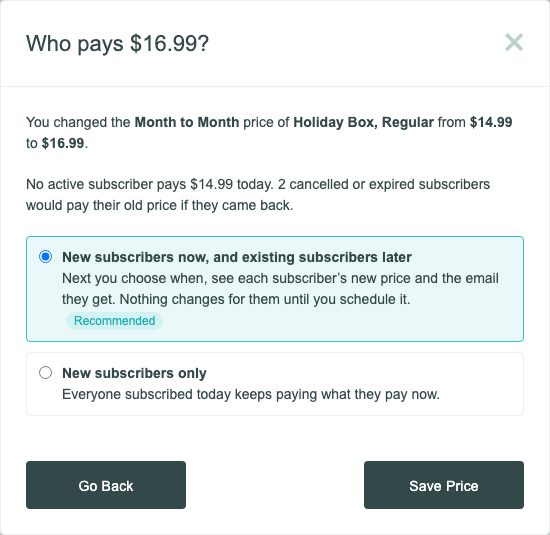
If any subscribers pay the price you changed, or would if they came back, a window asks who pays it.
Who Pays the New Price
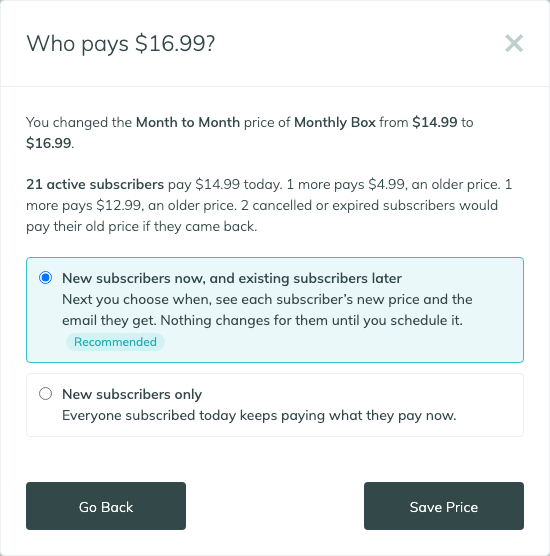
The window says what you changed, how many subscribers pay the old price, and how many pay an older one, for example “21 active subscribers pay $14.99 today. 1 more pays $4.99, an older price.” The count includes paused, suspended, and past-due subscribers. Cancelled and expired subscribers are counted apart, because they pay only if they come back.
Choose who pays the new price, then click Save Price. Go Back returns to the product without saving.
New Subscribers Now, and Existing Subscribers Later
This is the recommended choice. It saves the new price for new subscribers, then opens a bulk change for the subscribers who pay that price, set to keep them on the product at its new price.
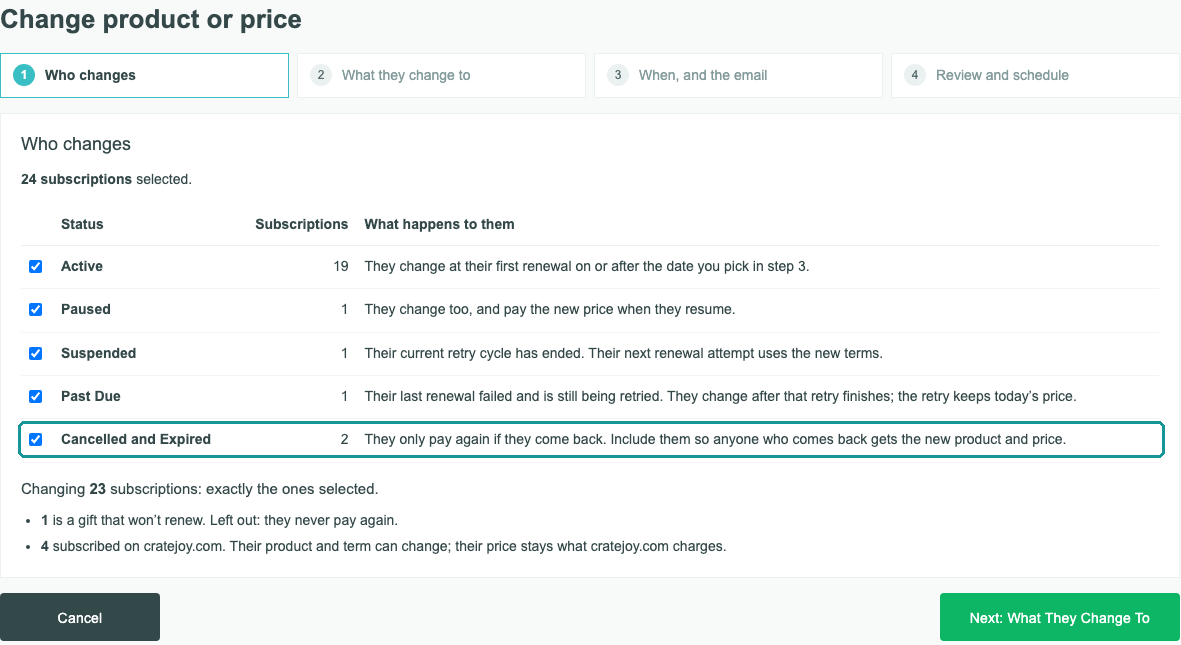
- Existing subscribers keep what they pay until the change you schedule reaches them. In its steps you pick the date, check each subscriber’s new price and next charge, and choose the email. See Changing the Product or Price for Many Subscribers.
- If you stop before scheduling, they keep paying what they pay now. The change waits as a draft under Subscriptions › Action › Bulk Changes (History).
- A price increase needs a date at least 31 days away, because each subscriber is emailed at least 30 days before it.
- Step 1 counts every subscriber on that term, and every status starts ticked. That includes Cancelled and Expired, so anyone who comes back pays the new price. They aren’t emailed. To leave them on their old price, untick them.
- Everyone on that term moves to the new price, including subscribers who pay an older one. The review flags anyone whose charge rises more than 50%. To keep older prices, choose Keep what they pay or Raise by $ or % for the group in step 2.
New Subscribers Only
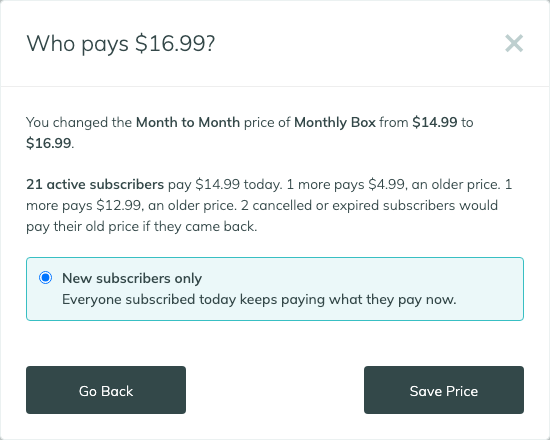
This saves the new price for new subscribers only. Everyone subscribed today keeps paying what they pay now. You don’t need to duplicate the product or hide the old one.
Team members without the Bulk Changes role see only this choice. A store admin can schedule the change for existing subscribers, or add the role under Account › Team.
How Existing Subscribers Keep Their Price
A subscriber keeps the price they pay while their product and term stay the same, including when:
- They change their address, card, or size in their account.
- They reactivate a cancelled subscription, or you do.
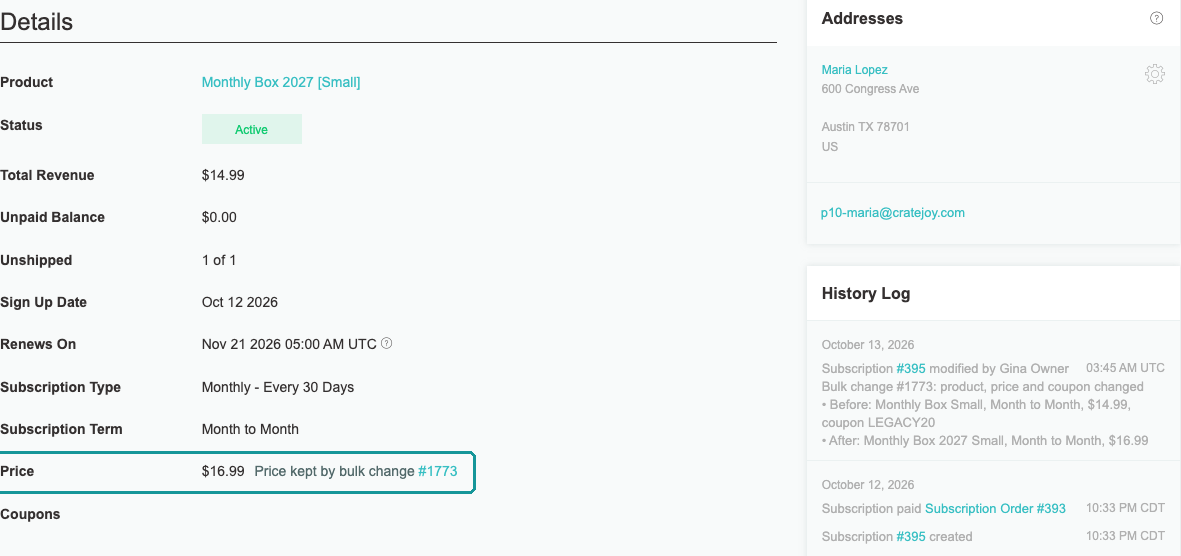
Their price changes only when they move to another product or term, which then sets the price, or when a bulk change sets it. A price set by a bulk change shows on the subscription’s page as “Price kept by bulk change” with the change’s number.
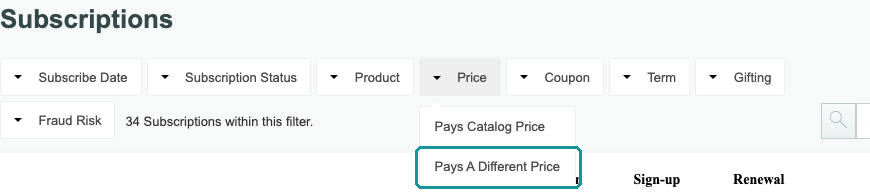
To see who pays an older price, open Subscriptions and set the Price filter to Pays A Different Price.
Subscribers on cratejoy.com
Subscribers who signed up on cratejoy.com pay what cratejoy.com charges, so they keep their price when you change yours. A bulk change can move them:
- To another product, size, or term: they pay cratejoy.com’s price for it, whatever price you choose for their group.
- To the new price, on their own product, size, and term: choose New product’s price, as the change a price save opens does. They move to cratejoy.com’s current price, and a price increase emails them at least 30 days ahead, as it does everyone.
Otherwise, a change that keeps them on their own product, size, and term leaves them out:
- With Keep what they pay, or when they already pay cratejoy.com’s current price: “cratejoy.com: its contract already has these terms.”
- With Raise by $ or % or Set a price: “cratejoy.com: its price follows cratejoy.com, so only New product’s price changes it.”
Common Questions
Why didn’t the window appear when I saved?
It appears only when subscribers pay the price you changed, or would if they came back. When none do, the new price is saved for new subscribers.
How do I make cancelled subscribers pay the new price if they come back?
The window counts them: “2 cancelled or expired subscribers would pay their old price if they came back.” Choose New subscribers now, and existing subscribers later. The change it opens has them ticked in step 1, so if one comes back, they pay the new price. They aren’t emailed.
Why does the window say no active subscriber pays the price?
It opens even when only cancelled or expired subscribers are on that price, for example “No active subscriber pays $14.99 today. 2 cancelled or expired subscribers would pay their old price if they came back.” Choose New subscribers now, and existing subscribers later to give them the new price if they come back, or New subscribers only to leave them on their old one.
Does a price cut need 31 days too?
No. The 31 days apply only when someone’s price goes up. A change where no one pays more can start tomorrow.
Does changing a product’s weight change what subscribers pay?
Not their price. If your shipping is calculated from weight, each renewal uses the product’s current weight, so their shipping can change. Let your subscribers know before it does.
Related Articles
- Changing the Product or Price for Many Subscribers
- Tracking a Bulk Change: Results, Retry, Cancel, and Undo
- Updating Subscription Product Terms
- Variant Pricing
Questions? Contact support.