
Change Product Or Price… moves many subscribers to a new product, size, term, or price in one change, from your Subscriptions page. Before you schedule it, you see what changes for every subscriber. Each subscriber changes at their first renewal on or after the date you pick, and the change’s page shows what happened to each one.
It replaces Change Products in the Subscriptions Action menu. To change one subscription, use Action › Change Product on its own page, as before: see Moving Subscribers to a New Product.
In This Article
- Before You Start
- Choose Who Changes
- Step 1: Who Changes
- Step 2: What They Change To
- Step 3: When, and the Email
- Step 4: Review and Schedule
- What Your Subscribers Get
- Common Questions
Before You Start
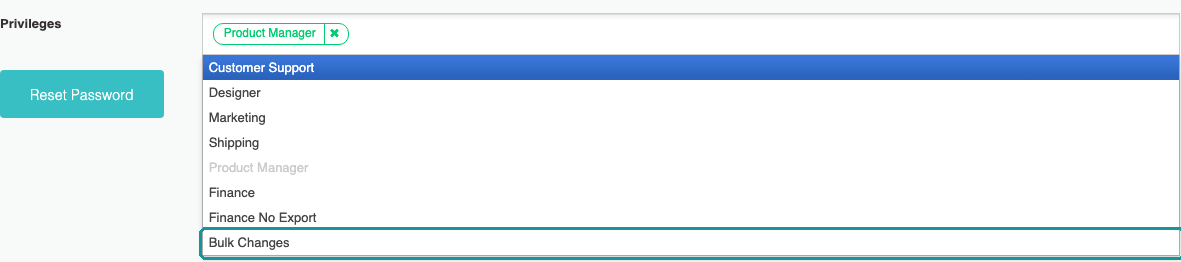
- Store admins can make bulk changes. A team member needs the Bulk Changes role. A store admin adds it under Account › Team: click the team member’s name, choose Bulk Changes under Privileges, and click Save.
- Your store has one scheduled change at a time. You can start another as a draft and schedule it once the first has finished.
Choose Who Changes
- In your seller portal, click Subscriptions.
- Use the filters and search to show the subscribers you want to change, for example Product set to the product you’re replacing. To pick a few by hand, tick them on the page you’re viewing instead.
- Click Action, and choose Change Product Or Price… from the menu.

The change starts with exactly the subscriptions your filters and search show, or the ones you ticked. Two filters help here:
- Price: Pays Catalog Price, or Pays A Different Price for subscribers who still pay an older price.
- Coupon: Has Any Coupon, or a single code.
If some subscribers are on a product you deleted or a term you turned off, the top of the Subscriptions page says so, for example “2 subscribers are on a product you deleted or a term you turned off. They keep renewing on it until you move them.” Click Move them to start a change of exactly those subscribers.

Step 1: Who Changes
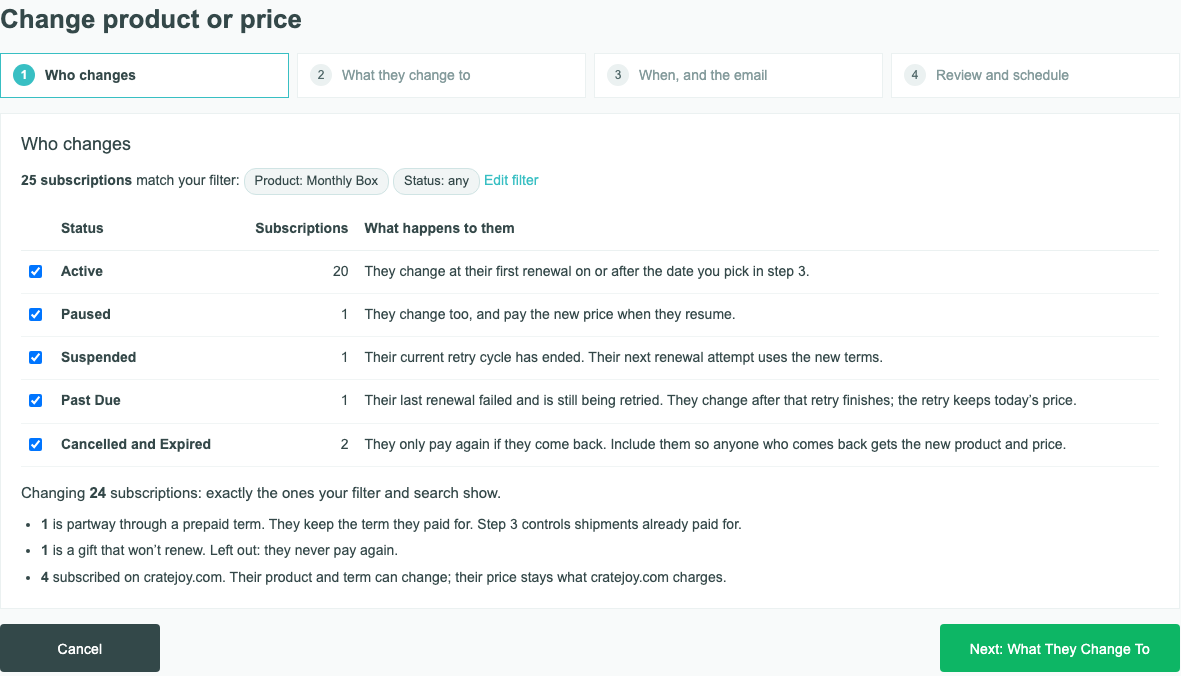
Step 1 shows how many subscriptions you chose, by status, and what happens to each status. Tick the ones to include. A change you start from Subscriptions starts with Active, Paused, Suspended, and Past Due ticked, and Cancelled and Expired unticked. The change a price save opens starts with every status ticked, Cancelled and Expired included.
| Status | What happens to them |
|---|---|
| Active | “They change at their first renewal on or after the date you pick in step 3.” |
| Paused | “They change too, and pay the new price when they resume.” |
| Suspended | “Their current retry cycle has ended. Their next renewal attempt uses the new terms.” |
| Past Due | “Their last renewal failed and is still being retried. They change after that retry finishes; the retry keeps today’s price.” |
| Cancelled and Expired | “They only pay again if they come back. Include them so anyone who comes back gets the new product and price.” |
Under the table, step 1 counts the subscribers who need care, for example:
- Prepaid: “1 is partway through a prepaid term. They keep the term they paid for. Step 3 controls shipments already paid for.”
- Gifts: “1 is a gift that won’t renew. Left out: they never pay again.”
- cratejoy.com: “4 subscribed on cratejoy.com. Their product and term can change; their price stays what cratejoy.com charges.”
Click Next: What They Change To.
Step 2: What They Change To
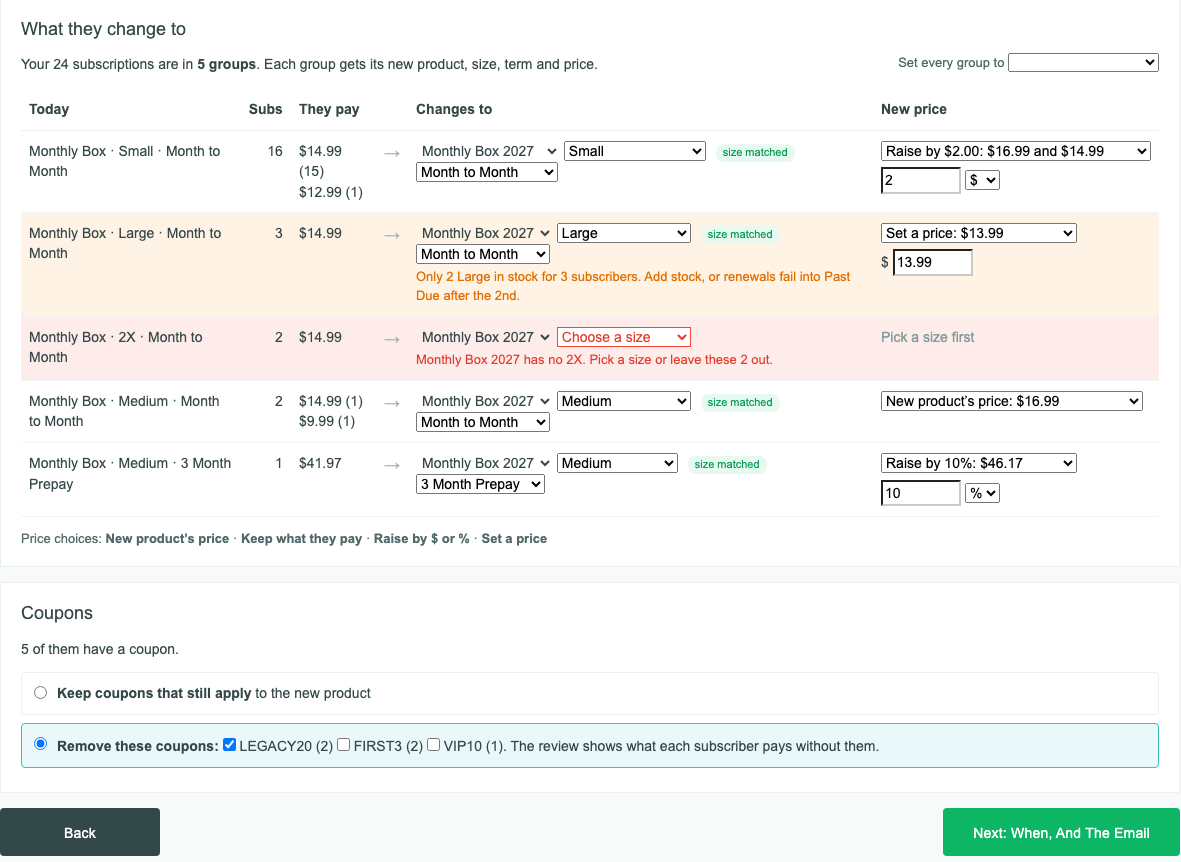
Your subscribers are grouped by the product, size, and term they have today. For each group:
- Under Changes to, pick the new product. The size and term that match are picked for you, with “size matched” beside a matching size. Pick another to move a group to a different size or term, even on the same product, for example from Month to Month to 3 Month Prepay.
- Under New price, choose how its price is set.
| Price choice | What each subscriber in the group pays |
|---|---|
| New product’s price | The new product’s price for that size and term. |
| Keep what they pay | The price they pay today. |
| Raise by $ or % | The price they pay today, plus the amount or percent you enter. |
| Set a price | The one price you enter. |
Each choice shows what it makes of the prices the group pays today, for example “Raise by $2.00: $16.99 and $14.99”. These are product prices, before coupons, shipping, and tax. To give every group the same product or price choice, use Set every group to.
What to watch for:
- A red row means the new product has no matching size, for example “Monthly Box 2027 has no 2X. Pick a size or leave these 2 out.” Pick a size, or choose Leave these 2 out. You can’t go on until every group has a choice.
- A note in orange means the new size may run short, for example “Only 2 Large in stock for 3 subscribers. Add stock, or renewals fail into Past Due after the 2nd.” It doesn’t stop the change.
- Subscribers who signed up on cratejoy.com pay what cratejoy.com charges, so the coupon choice doesn’t apply to them. If they move to another product, size, or term, they pay cratejoy.com’s price for it, whatever the price choice. If they stay on their own product, size, and term, only New product’s price changes what they pay, to cratejoy.com’s current price, and any other choice leaves them out.
If any of them have a coupon, choose what happens to it under Coupons:
- Keep coupons that still apply to the new product.
- Remove these coupons: tick the codes to take off. The review shows what each subscriber pays without them.
A coupon that doesn’t apply to the new product comes off either way, and the review flags it as “coupon ends”.
Click Next: When, And The Email. We prepare the review in the background, and a progress bar shows how far along it is. A large change can take a while. You can leave the page: the change waits as a draft under Action › Bulk Changes (History).
Step 3: When, and the Email
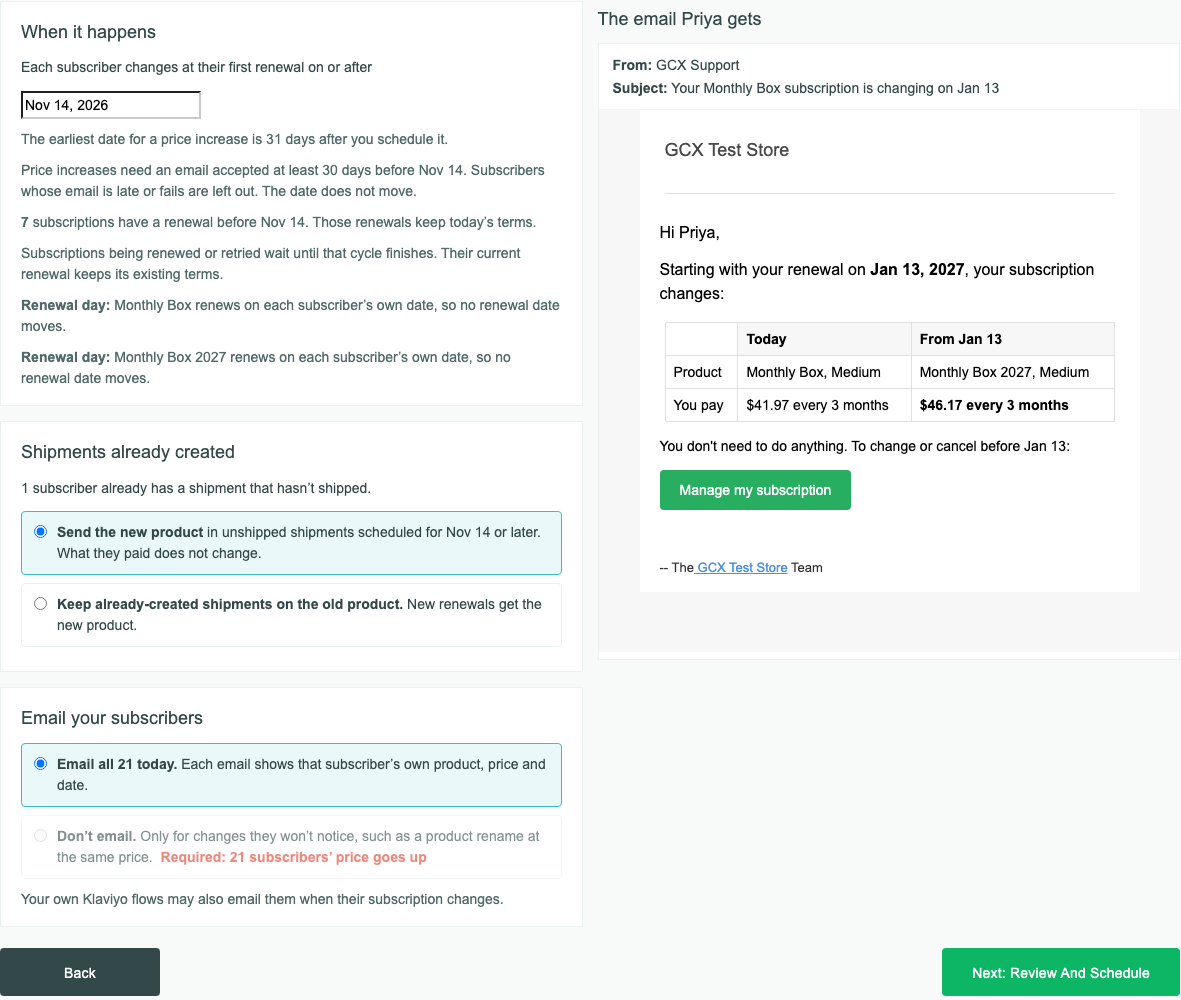
When it happens. Pick the date. Each subscriber changes at their first renewal on or after it.
- Renewals before the date keep today’s terms. The page says how many subscriptions have one.
- If anyone’s price goes up, the earliest date is 31 days after you schedule it, because each of them must be emailed at least 30 days before the date. A subscriber whose email is late or fails is left out, and the date doesn’t move. A change where no one pays more can start tomorrow.
- A subscription being renewed or retried on the date waits until that renewal or retry finishes, and that renewal keeps today’s terms.
- Renewal day: if the new product renews on a different day, each subscriber’s next renewal moves to the new product’s day, never earlier, so no one renews twice in a month. The page says how many move.
Shipments already created. When the product changes and some subscribers already have a shipment that hasn’t shipped, choose:
- Send the new product in unshipped shipments scheduled for the date or later, including later shipments of a prepaid term. What they paid doesn’t change.
- Keep already-created shipments on the old product. New renewals get the new product.
Shipments already marked shipped never change.
Email your subscribers. Choose Email all (it shows your count, for example “Email all 21 today.”) or Don’t email. Don’t email is only for changes subscribers won’t notice, such as a product rename at the same price, and you can’t choose it when anyone’s price goes up. The emails go out when you schedule the change. On the right is the email one of your subscribers will get.
Your own Klaviyo flows may also email subscribers when their subscription changes.
Click Next: Review And Schedule.
Step 4: Review and Schedule
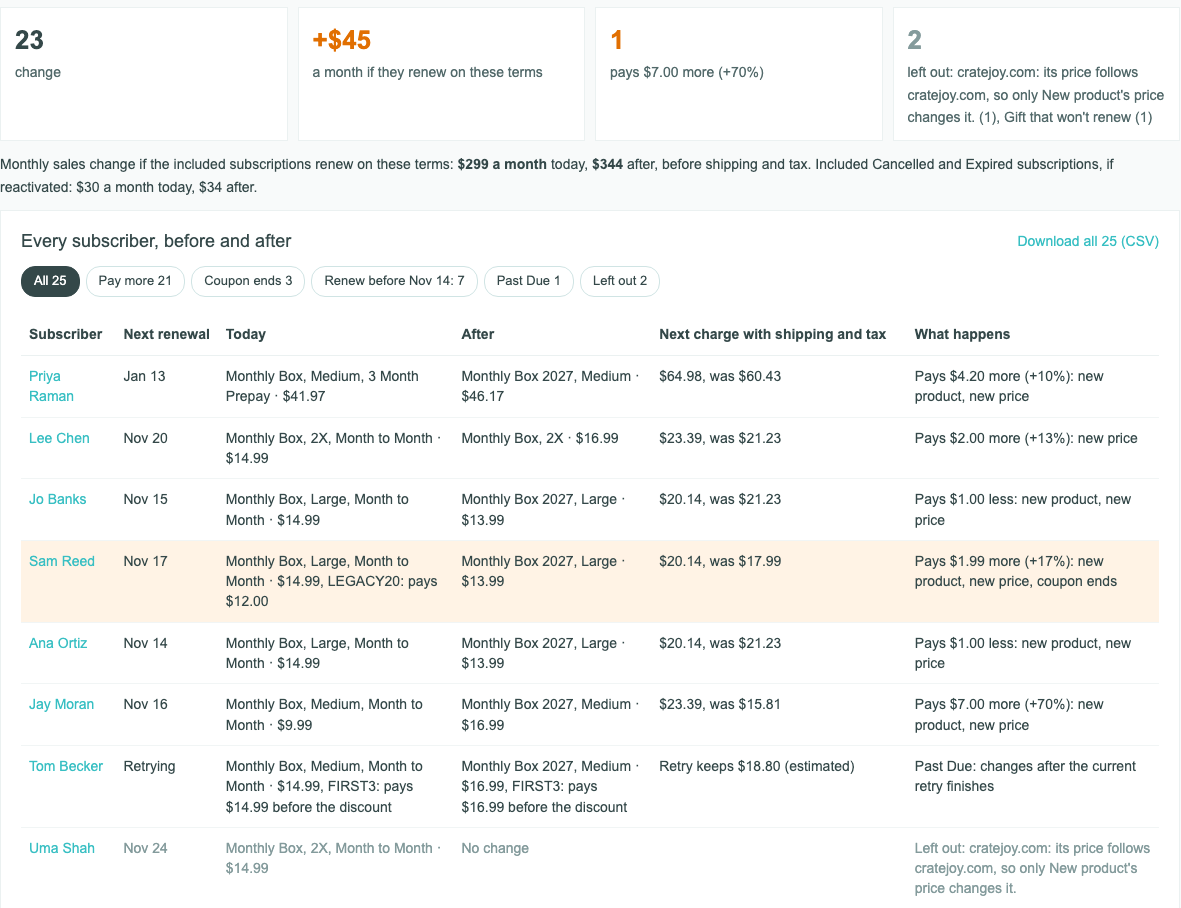
The top of the review shows how many subscriptions change, how your monthly sales would change if they renew on these terms, the biggest increase, and how many are left out and why. Under it, Every subscriber, before and after lists each one:
| Column | What it shows |
|---|---|
| Next renewal | Their next renewal date, or Retrying, Paused, Cancelled, or Expired. |
| Today | Their product, size, term, and price today, with any coupon and what they pay with it. |
| After | The same after the change. |
| Next charge with shipping and tax | Their next charge after the change, and what it was. “(estimated)” means part of it, such as tax, shipping, or what cratejoy.com charges, is an estimate. |
| What happens | How much more or less they pay, and what changes: new product, new price, coupon ends. |
The filters above the list pick out the subscribers worth a second look: Pay more, Coupon ends, Renew before the date, Past Due, Left out, and Charge rises over 50%. Rows where a coupon ends or the charge rises more than 50% are highlighted. Download all (CSV) saves every row.
To schedule the change:
- If anyone’s charge rises more than 50%, tick the checkbox, for example “I’ve checked the 2 subscribers whose charge rises more than 50%.” It’s there to catch a mistyped price.
- Type the number shown in “Type 23 to confirm”: the number of subscriptions that change.
- Click Schedule For and the date, for example Schedule For Nov 14.
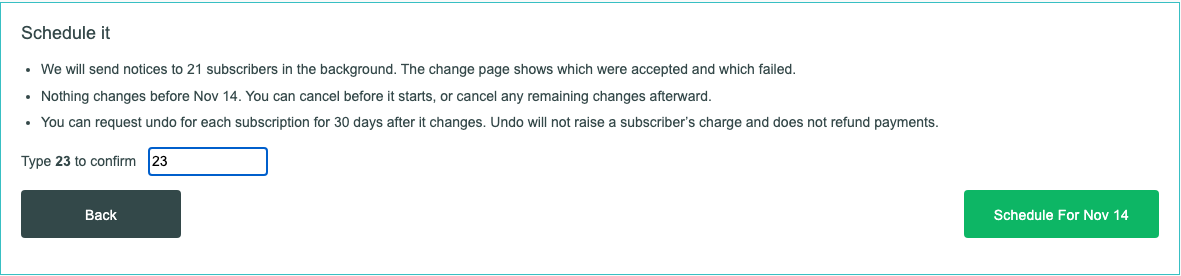
The emails start going out right away. Nothing else changes before the date. To follow the change, see Tracking a Bulk Change: Results, Retry, Cancel, and Undo.
What Your Subscribers Get
Each subscriber whose product or charge changes gets one email from your store. It shows their product and what they pay today and from the date, any coupon that ends, and a Manage my subscription button. Its subject is “Your Monthly Box subscription is changing on Nov 21”, with their own product and the date of their first renewal on or after the change’s date.
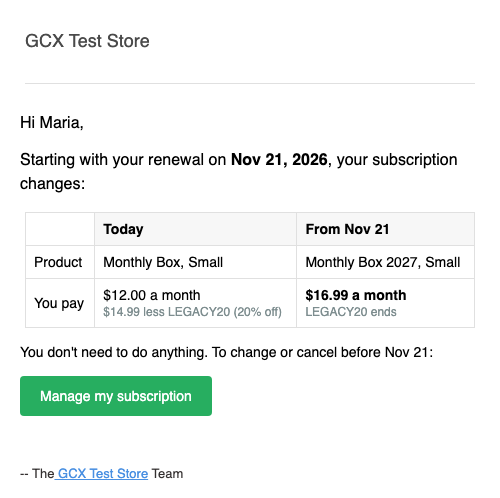
- A subscriber whose payment is being retried gets “Your Monthly Box subscription will change after your current payment retry”, which says their current renewal keeps its price.
- A paused subscriber gets “Your Monthly Box subscription is changing when you resume”.
- Subscribers who signed up on cratejoy.com get the same email, and its button opens their cratejoy.com account.
- Cancelled and Expired subscribers aren’t emailed, and neither is anyone the review leaves out.
The email is Subscription price or product change under Platform Settings › Notifications. It has no on/off switch: each change decides whether to email. You can change its wording, and it always keeps the subscriber’s terms, the date, and the link.
Common Questions
Will anyone be charged the new price early?
No. Each subscriber changes at their first renewal on or after the date. Renewals before it, and a Past Due subscriber’s retry, keep today’s price.
What happens to prepaid subscribers?
They keep the term they paid for and change at their next renewal. In step 3 you choose whether their shipments already created get the new product. What they paid doesn’t change.
Can I include cancelled subscribers?
Yes. Tick Cancelled and Expired in step 1. The change a price save opens has them ticked already. They aren’t emailed. If one comes back, they get the new product and price.
Why is a subscriber left out?
Some can’t be changed safely, and the review gives each one’s reason, for example “Gift that won’t renew” or “No 2X in the new product”. Subscribers who signed up on cratejoy.com and stay on their own product, size, and term are left out unless New product’s price changes what they pay:
- With Keep what they pay, or when they already pay cratejoy.com’s current price: “cratejoy.com: its contract already has these terms.”
- With Raise by $ or % or Set a price: “cratejoy.com: its price follows cratejoy.com, so only New product’s price changes it.”
Click Left out in the review to see them all, and see Tracking a Bulk Change for every reason.
Can I schedule two changes at once?
No. Your store has one scheduled change at a time, and a change keeps that spot until it finishes, including subscribers still waiting for a renewal or retry. To schedule another sooner, cancel what’s left of the first.
A renewal-date upload doesn’t take that spot: you can apply one while a change is scheduled. If both reach the same renewal, the change goes first, and the upload’s row is left out, saying what changed. See Uploading Renewal Dates, Skips, and Cancellations.
Can I edit a change after I schedule it?
No. Cancel it and start a new one. Cancelling emails no one, so subscribers who were already emailed about the change aren’t told it’s off. To keep one subscriber out, click Leave this subscriber out of this change on their subscription’s page before the date.
Why don’t I see Change Product Or Price…?
Only store admins and team members with the Bulk Changes role see it. A store admin can add the role under Account › Team.
Related Articles
- Tracking a Bulk Change: Results, Retry, Cancel, and Undo
- Changing Product Price
- Moving Subscribers to a New Product
- Managing Internal Users: Setup and Management
Questions? Contact support.