
Once you schedule a bulk change, its page shows what happens to each subscriber: who changed, who’s waiting, and who was left out and why. From there you can retry failures, cancel what hasn’t happened yet, and undo the change for 30 days.
In This Article
- Find a Change
- The Change’s Page
- What Each Result Means
- Why a Subscriber Is Left Out
- Retry Failed Subscribers
- Cancel a Change
- Undo a Change
- On a Subscription’s Page
- When a Change Finishes
- Common Questions
Find a Change
- In your seller portal, click Subscriptions.
- Click Action, then Bulk Changes (History).
- Click the change’s number.
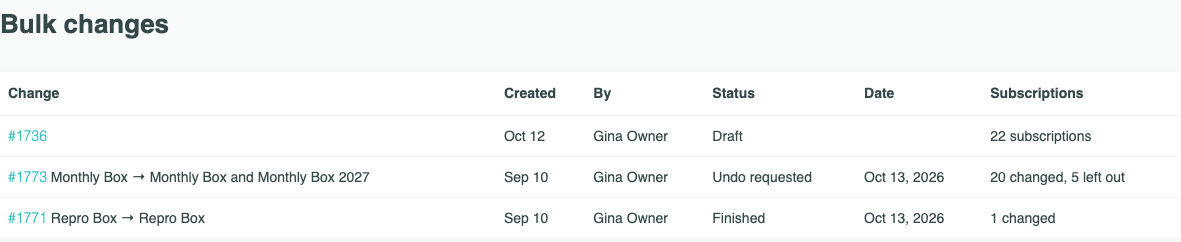
The list shows every change, newest first, with who made it, its date, and what happened to its subscriptions. Its status is one of:
| Status | What it means |
|---|---|
| Draft | Started but not scheduled. Open it to carry on where you left off. |
| Scheduled | Waiting for its date. |
| Applying | Being made now. |
| Waiting | Made, except for subscribers still finishing a renewal or retry. |
| Finished | Every subscriber has a result. |
| Cancelled | You cancelled it, or what was left of it. |
| Undo requested | You asked to undo it. |
At stores with renewal-date uploads, the list also shows each upload as Upload and its file’s name, for example “Upload · r2-up9.csv”, with its rows or results. An upload you stopped reads Stopped. See Tracking an Upload: Results, Retry, Stop, and Undo.
The Change’s Page
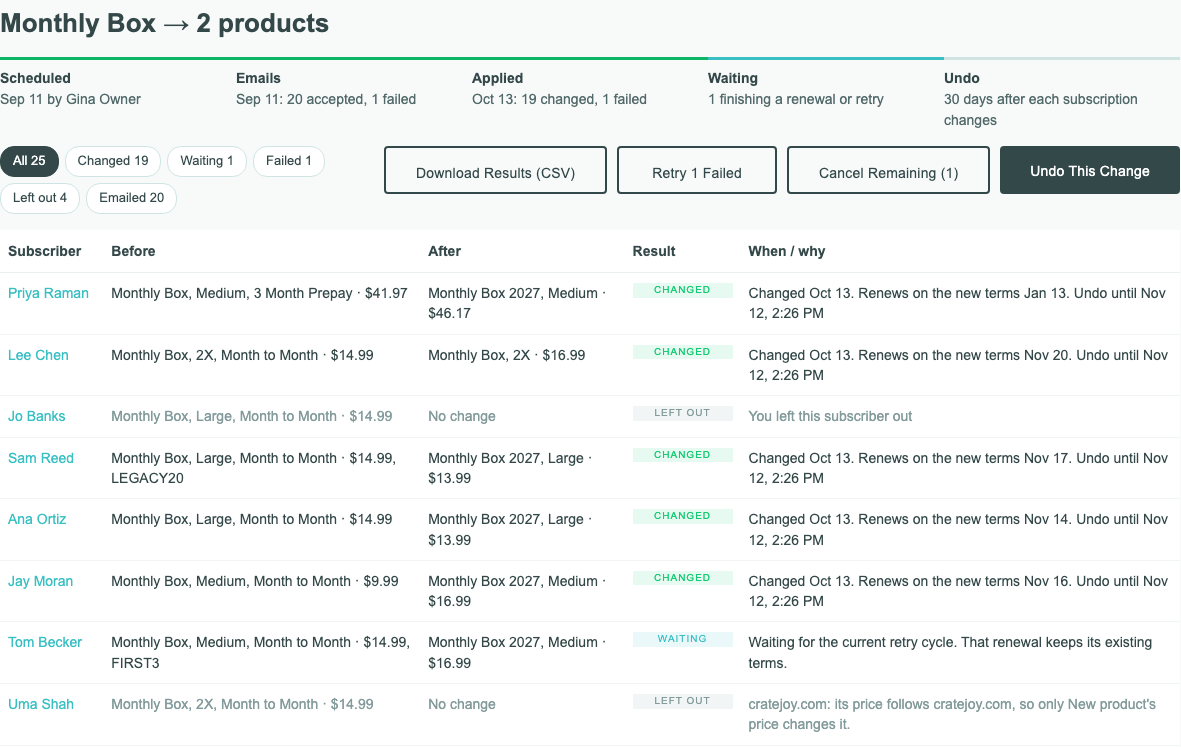
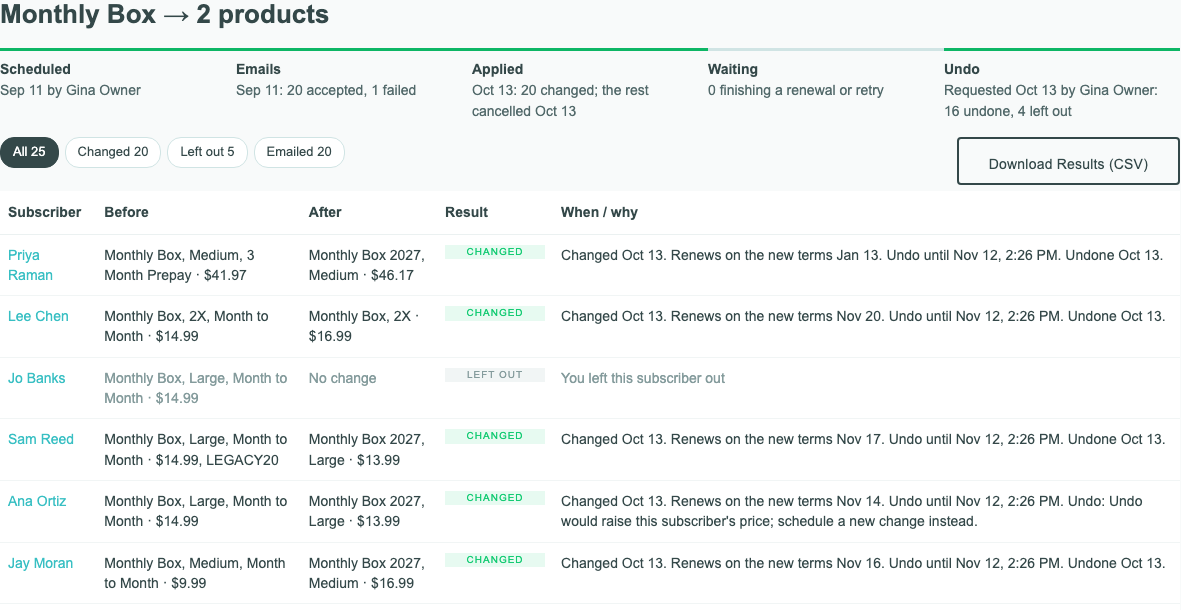
The heading names the products, for example “Monthly Box → 2 products”. Under it is the timeline:
- Scheduled: when, and by whom.
- Emails: how many emails were accepted for delivery, and how many failed.
- Applied: “Starts” and the date until then, then how many changed and failed.
- Waiting: how many are still finishing a renewal or retry.
- Undo: “30 days after each subscription changes”, or how the undo is going once you ask for one. It isn’t shown on a change that finished or was cancelled before anyone changed.
Below it is each subscriber’s before and after, their result, and when or why. The filters above the list show one result at a time: All, Changed, Waiting, Failed, Needs staff, Left out, and Emailed. Download Results (CSV) saves every subscriber’s before and after, result and reason, when they were emailed, and their undo deadline.
What Each Result Means
| Result | What it means | What you can do |
|---|---|---|
| Pending | The change hasn’t reached them yet. Before the date, everyone the change will reach is Pending. | Leave one out from their subscription page, or cancel the change. |
| Changed | Their next renewal is set to the new terms. “Changed Oct 13. Renews on the new terms Nov 21.” means they’re charged on the new terms at their Nov 21 renewal. A paused subscriber reads “New terms apply when resumed”, and a cancelled or expired one “New terms apply if reactivated”. “Undo until” gives the end of their undo window. | Undo it within 30 days. |
| Waiting | Their renewal is being retried, or is renewing right now: “Waiting for the current retry cycle. That renewal keeps its existing terms.” When it finishes, they change, and their line reads “Changed after the previous renewal cycle finished.” with the date of their next renewal on the new terms. | Nothing. They change on their own. |
| Failed | The change couldn’t be made, and nothing changed for them. The reason says why, for example “cratejoy.com: its contract wasn’t changed: PayWhirl refused the update”. | Retry. |
| Needs staff | A cratejoy.com subscription whose change may be only partly made: “cratejoy.com: its contract may be partly changed; Cratejoy staff need to check it”. It isn’t retried on its own. | Contact support. |
| Left out | Not changed, with the reason. | Start a new change for them if you still want to. |
Why a Subscriber Is Left Out
| Reason | What it means |
|---|---|
| You left this subscriber out | You left their group out in step 2, or left them out from their subscription page. |
| Gift that won’t renew | A gift subscription that ends without renewing. It never pays again. |
| No 2X in the new product | You left the group out because the new product has no matching size. |
| Email failed | Their price was going up, and the email telling them bounced. |
| Email not sent in time | Their price was going up, and the email telling them wasn’t accepted for delivery at least 30 days before the date. |
| Changed since you scheduled this | Their subscription changed after you scheduled, for example they changed it themselves. The change doesn’t overwrite that. |
| Cancelled since you scheduled this, or Expired since you scheduled this | They cancelled or expired after you scheduled, and you didn’t include Cancelled and Expired. |
| cratejoy.com: its contract already has these terms. | They signed up on cratejoy.com and stay on their own product, size, and term, and the change wouldn’t change what they pay: their group’s price choice was Keep what they pay, or they already pay cratejoy.com’s current price. |
| cratejoy.com: its price follows cratejoy.com, so only New product’s price changes it. | They signed up on cratejoy.com and stay on their own product, size, and term, and their group’s price choice was Raise by $ or % or Set a price. |
| cratejoy.com: Monthly Box 2027 isn’t listed on cratejoy.com, or has no 3 Month Prepay plan on cratejoy.com | They signed up on cratejoy.com, and can only move to a product and term sold there. |
| More than one product line, or Quantity above 1 | Bulk changes handle subscriptions of one product at a quantity of 1. Change these one at a time. |
| You cancelled the remaining changes | You cancelled before their change was made. |
Retry Failed Subscribers
When any subscribers failed, click Retry and the number failed, for example Retry 1 Failed. Each goes again with the terms you approved. Subscribers who changed, are waiting, or were left out aren’t touched, and no one is emailed again.
Cancel a Change
- Before its date: click Cancel This Change, then Cancel Change. Nothing changes for its subscribers.
- Once it has started: click Cancel Remaining, which shows how many are left, for example Cancel Remaining (1). Then click Cancel Remaining in the window. The changes not yet made stop, and those subscribers show Left out, “You cancelled the remaining changes”. Subscriptions already changed keep their new terms. To put those back, use Undo.
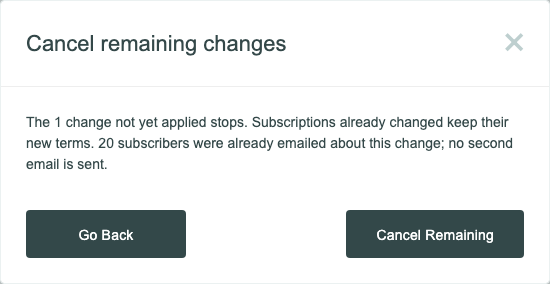
Cancelling emails no one. Subscribers who were already emailed about the change aren’t told it’s off, so tell them yourself if you need to.
Undo a Change
Undo This Change appears once the change has changed a subscription, and stays while any of them is within its 30 days.
- On the change’s page, click Undo This Change.
- Click Undo Change.
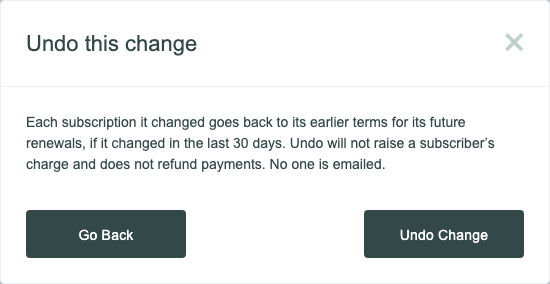
Each subscription the change changed in the last 30 days goes back to its earlier product, size, term, price, and coupons for its future renewals. Unshipped shipments the change gave the new product go back to the earlier one. Changes not yet made stop, as if you’d cancelled them.
Undo never raises what a subscriber pays, and it refunds nothing: a renewal already charged on the new terms stays charged. It never moves a renewal date earlier, and no one is emailed.
Some subscriptions can’t be undone, and their line says why:
- “Changed since this change; not undone.” Someone changed the subscription after the bulk change, or it was reactivated.
- “Undo would raise this subscriber’s price; schedule a new change instead.” For example, after a price cut.
- “Undo can’t show this subscriber’s price won’t go up”, when their next charge couldn’t be worked out.
- “Undo window ended”: it changed more than 30 days ago.
An undone subscriber still shows Changed, with “Undone” and the date at the end of their line. The timeline’s Undo shows how many were undone.
On a Subscription’s Page
Before the date, the page of each subscription in the change shows what’s coming:

It names the renewal where they change, their new product and price, what they pay today, any coupon that ends, and when they were emailed. While their renewal or retry is still running, it reads “Waiting for the current renewal or retry to finish.”
To keep one subscriber out, click Leave this subscriber out of this change, then Leave Out. They keep their product and price, and you can’t add them back to that change.
After the change, the subscription’s History Log lists it with the before and after, and its Price reads “Price kept by bulk change” with the change’s number.
When a Change Finishes
When everyone in the change has a result, including subscribers who waited for a renewal or retry, the person who made the change gets an email with the subject “Your change to 25 subscriptions is applied: 19 changed, 4 left out, 1 failed”, with your own numbers, and a link to the change’s page.
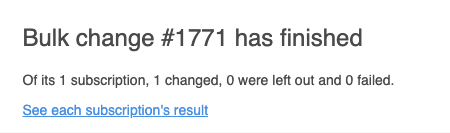
A change you cancel doesn’t send this email. To stop these emails, turn off Bulk Change Finished under Platform Settings › Notifications.
Common Questions
A subscriber shows Changed but hasn’t renewed yet. Is that right?
Yes. Changed means their next renewal is set to the new terms. They’re charged on them at that renewal, on the date in their line.
Can I undo after a subscriber has renewed at the new price?
Yes, within 30 days of when they changed. Their future renewals go back to the earlier terms, but the renewal already charged isn’t refunded. Refund it from the order if you need to.
Why can’t I schedule a new change?
Your store has one scheduled change at a time, and a change keeps that spot until its waiting subscribers finish. To schedule another sooner, cancel what’s left of the first.
What does a failed email mean?
The email bounced. If that subscriber’s price was going up, they’re left out of the change with “Email failed”.
Related Articles
Questions? Contact support.