
Once you apply an upload, its page shows what happened to each row of your file: moved, skipped, cancelled, or left out and why. From there you can download the results, retry rows that failed, stop rows that haven’t applied yet, and undo the upload for 30 days.
In This Article
- Find an Upload
- The Upload’s Page
- What Each Result Means
- Why a Row Is Left Out When It Applies
- Download Results
- Retry Failed Rows
- Stop Remaining Rows
- Undo This Upload
- On a Subscription’s Page
- When an Upload Finishes
- Common Questions
Find an Upload
- In your seller portal, click Subscriptions.
- Click Action, then Bulk Changes (History).
- Click the upload’s number.
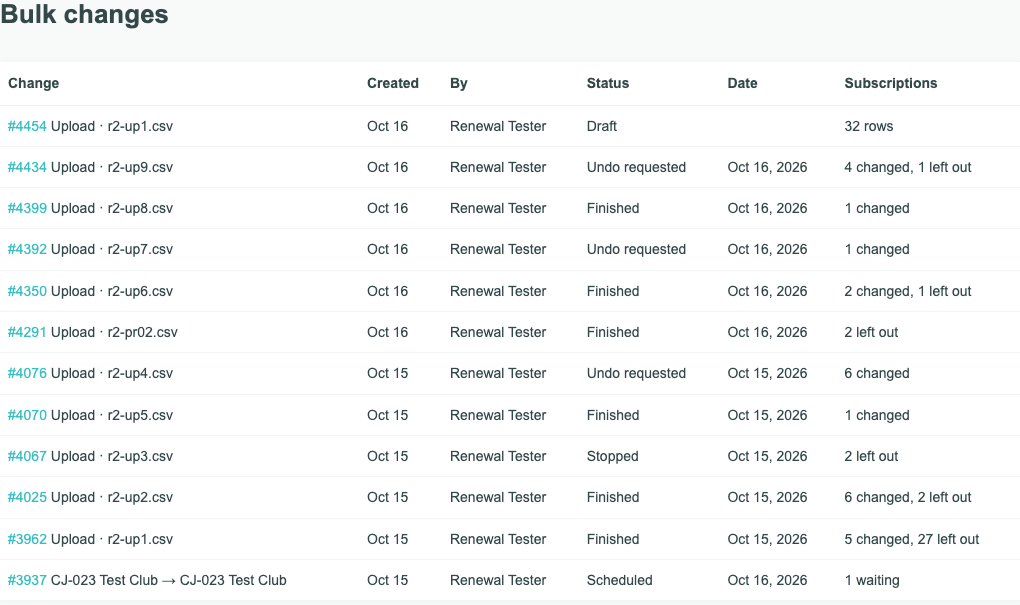
Uploads are listed with your product and price changes, newest first, as Upload and the file’s name, for example “Upload · r2-up9.csv”. Each shows who made it, its status, the day it was applied, and its rows, or once applied, its results, such as “4 changed, 1 left out”. An upload’s status is one of:
| Status | What it means |
|---|---|
| Draft | Not applied yet. Open it to carry on where you left off. |
| Scheduled | Applied, and about to start. |
| Applying | Its rows are applying now. |
| Waiting | Applied, except rows waiting for a renewal or retry to finish. |
| Finished | Every row has a result. |
| Stopped | You stopped the rows that hadn’t applied. |
| Undo requested | You asked to undo it. |
For product and price changes in the same list, see Tracking a Bulk Change: Results, Retry, Cancel, and Undo.
The Upload’s Page
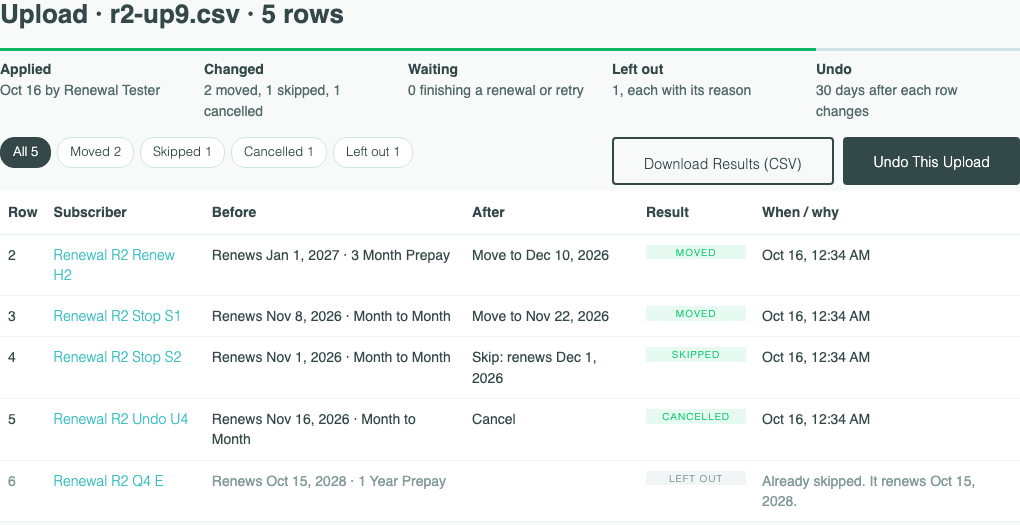
The heading names the file and its rows, for example “Upload · r2-up9.csv · 5 rows”. Across the top:
- Applied: the day you applied it, and who.
- Changed: how many moved, skipped, and cancelled.
- Waiting: how many are finishing a renewal or retry.
- Left out: how many, “each with its reason”.
- Undo: “30 days after each row changes”, or once you ask, how the undo went.
Below is every row of your file: its line, the subscriber, Before (the renewal date and term we checked), After (what the row asked for), the Result, and When / why. The pills show one result at a time. While rows are applying, the page updates itself and keeps your place.
What Each Result Means
| Result | What it means | What you can do |
|---|---|---|
| Pending | Not applied yet. Right after you apply, every row that can apply is Pending. | Wait, or stop the rows that haven’t applied. |
| Moved, Skipped, or Cancelled | The row applied. When / why shows when, in your store’s time zone. | Undo it within 30 days. |
| Waiting | Its subscription was being charged when its row came up. It’s checked again when that renewal or retry finishes. | Nothing. It goes on by itself. |
| Left out | Nothing changed for that subscription. When / why gives the reason. | Fix the row and upload it again, if it still needs a change. |
| Failed | “This row couldn’t be applied, so its subscription is as it was.” | Retry. |
Why a Row Is Left Out When It Applies
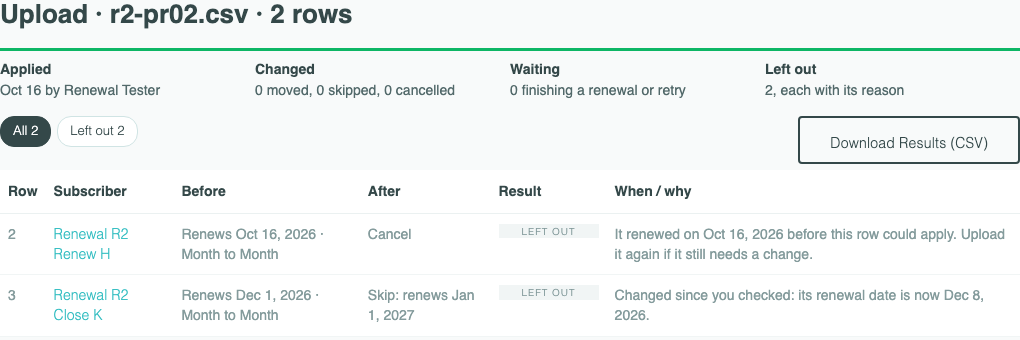
Rows left out in step 2 keep their reason here, as Reviewing an Upload lists them. A row can also be left out when its turn comes, because each row is checked again before it applies, and an upload never overwrites a change made after you checked it:
- “It renewed on Oct 16, 2026 before this row could apply. Upload it again if it still needs a change.”
- “Changed since you checked: its renewal date is now Dec 8, 2026.” Someone changed the subscription after the check, for example you or the subscriber moved its date. Others name its status, skip, plan, or renewal schedule. A product or price change scheduled for the same renewal goes first, and the row says its plan is now different.
- “The new date must be tomorrow or later.” The day came before the row could apply.
- “Changed since you checked: its next charge is now”, with an amount: an early charge you approved now comes to something else.
- “Its next renewal amount couldn’t be calculated before this row could apply. Upload it again to recalculate it.”
- “You stopped this upload before this row applied.”
Download Results
Download Results (CSV) saves every row of your file, in order, with your own columns as you uploaded them, followed by: matched subscription, customer, email, renewal date before and after, status before and after, skipped before and after, result, reason, applied at, uploaded by, undo result, undo reason, and undone at.
Because it keeps your columns, you can fix rows that were left out and upload the file again. Rows that already changed are left out the second time, because they no longer renew on the date in the file.
Retry Failed Rows
When rows failed, click Retry and the number, for example Retry 1 Failed. Each failed row goes again with what you approved, and no other row is touched. Retry isn’t offered once you stop the upload or ask to undo it.
Stop Remaining Rows
While rows are still to apply, Stop Remaining Rows is above the list.
- Click Stop Remaining Rows.
- Click Stop Remaining Rows in the window.
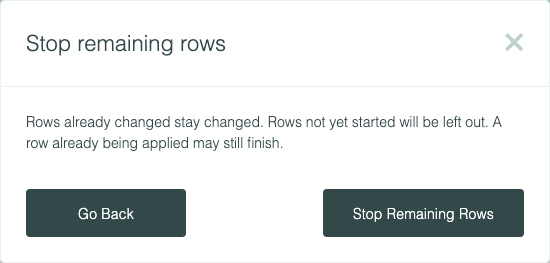
As the window says, “Rows already changed stay changed. Rows not yet started will be left out. A row already being applied may still finish.” Rows that didn’t apply read “You stopped this upload before this row applied.”, and the upload shows Stopped in Bulk Changes (History). To put back rows that changed, use Undo This Upload.
Undo This Upload
Undo This Upload appears once the upload has changed a subscription, and stays while a row it changed is within its 30 days. You can ask once.
- Click Undo This Upload.
- Click Undo This Upload in the window.
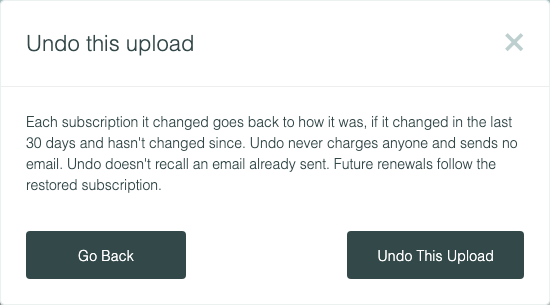
Each subscription the upload changed goes back to how it was, if it changed in the last 30 days and hasn’t changed since:
- A move: its earlier renewal date, and any skip it had pending.
- A skip: its earlier renewal date, no longer skipped.
- A cancel: its earlier status, auto-renew, and renewal date.
Rows that haven’t applied yet stop. Undo never charges anyone, refunds nothing, and sends no email. It doesn’t recall an email already sent. An email still waiting to go when its row is undone isn’t sent: under Analytics › Notifications it’s listed as Failed, with “Not sent: the change was undone”.
Some rows can’t be undone, and their line says why:
- “Changed since this upload applied: its renewal date is now Dec 8, 2026.” The subscription changed after the upload, for example it renewed or its date was moved. Others name its status, skip, plan, or renewal schedule.
- For a cancel, its coupon changed since, so it would come back on a price nobody checked: “Changed since this upload applied: its coupon is now none.”, “… its coupon TAKE5 is now $1.00 off on every renewal.”, “… its coupon SPRING5 is now unavailable.”, or “… its coupon PICK5 no longer applies to its product or term.”
- “It was Past Due when this upload cancelled it. Undo won’t restart its renewal retries. Reactivate it from its page instead.”
- “Its old date, Nov 1, 2026, is before tomorrow. Give it a new date in another upload.”
- “More than 30 days have passed since this row changed.”
- “This row couldn’t be undone, so its subscription is as it was.”
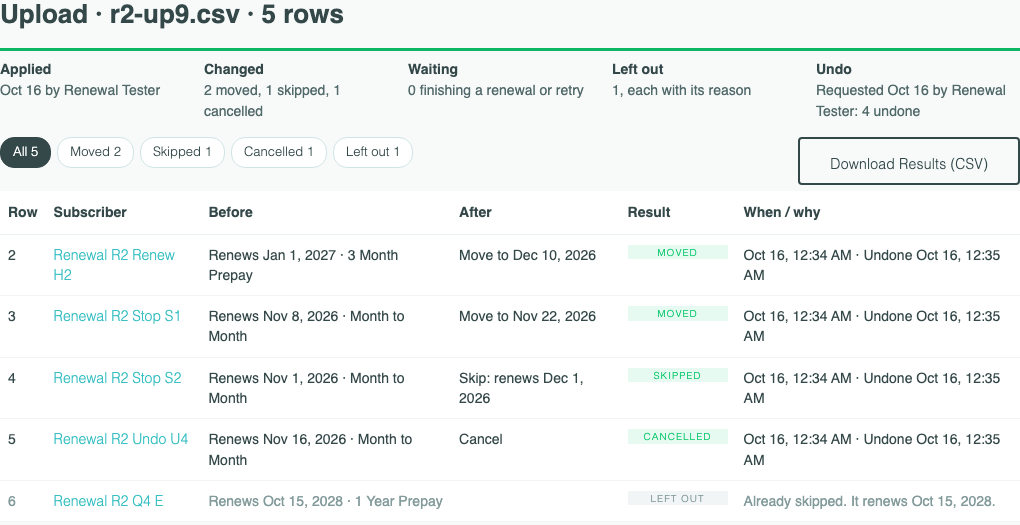
Afterward, the Undo column reads, for example, “Requested Oct 16 by Renewal Tester: 4 undone”. Each undone row ends “· Undone” and the time, and a row that wasn’t undone ends “· Undo: Left out.” and the reason. Rows keep their Moved, Skipped, or Cancelled result.
On a Subscription’s Page
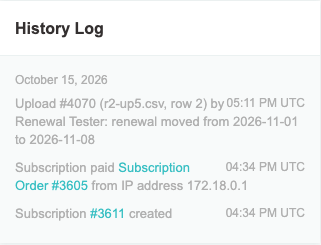
Each change an upload makes adds one line to the subscription’s History Log, naming the upload, your file, its row, and who made it:
- “Upload #4070 (r2-up5.csv, row 2) by Renewal Tester: renewal moved from 2026-11-01 to 2026-11-08”
- “Upload #3962 (r2-up1.csv, row 3) by Renewal Tester: skipped 2026-11-01, renews 2026-12-01”
- “Upload #4076 (r2-up4.csv, row 4) by Renewal Tester: cancelled”, and after an undo, “Upload #4076 undone by Renewal Tester: status back to Active”
An upload’s cancel is recorded with the reason “Cancelled by merchant”, as your own Cancel is.
When an Upload Finishes
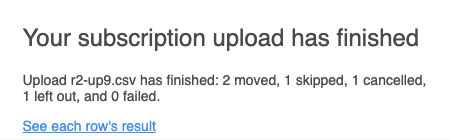
When every row has a result, the person who made the upload gets one email, “Your subscription upload has finished”, with the counts, for example “Upload r2-up9.csv has finished: 2 moved, 1 skipped, 1 cancelled, 1 left out, and 0 failed.”, and a link to each row’s result. It comes once, not again after a retry.
To stop these emails, turn off Bulk Change Finished under Platform Settings › Notifications. That stops the email for product and price changes too.
Common Questions
A row shows Moved. When is the subscriber charged?
At their renewal, on the new date. Nothing was charged when the row applied.
Can I undo one row?
No. Undo This Upload undoes every row it can. To change one subscription back, change it on its own page, or upload a row for it.
A subscriber renewed after my upload. Can I undo their row?
No: the row reads “Changed since this upload applied”, with its new renewal date. Undo never refunds a renewal. Refund it from the order if you need to.
Do my integrations hear about it?
A cancel sends the same subscription_cancelled webhook as your own Cancel. Moves and skips send none, as when you change one subscription.
Related Articles
- Uploading Renewal Dates, Skips, and Cancellations
- Reviewing an Upload: Early Charges and Rows That Can’t Change
- Tracking a Bulk Change: Results, Retry, Cancel, and Undo
- How to Reactivate a Subscription
Questions? Contact support.