
When a renewal payment fails, the Renewal Failure email now carries an Update payment method button. Your customer taps it, types a new card (or pays with Apple Pay or Google Pay when your store offers them), and the missed renewal is charged right away. No login, no password reset, and no hunting through their account.
In This Article
- Before You Start
- What Your Customer Sees
- If You Use the Standard Renewal Failure Email
- If You Wrote Your Own Renewal Failure Email
- How the Link Works
- Common Questions
Before You Start
This is for your storefront customers, on your Cratejoy store’s own site. It doesn’t change how failed renewals work on the Cratejoy Marketplace.
The button is already in the standard Renewal Failure email. If you’ve customized that email, you add it with one placeholder. Only a store admin can edit your notification emails, under Platform Settings › Notifications.
What Your Customer Sees
- The Renewal Failure email, with an Update payment method button.
- A page that shows their subscription, the amount due, and the card that didn’t go through. A new card can be typed in. If your store has Wallet Buttons turned on, Apple Pay or Google Pay also sits at the top when their phone or browser has a wallet set up.
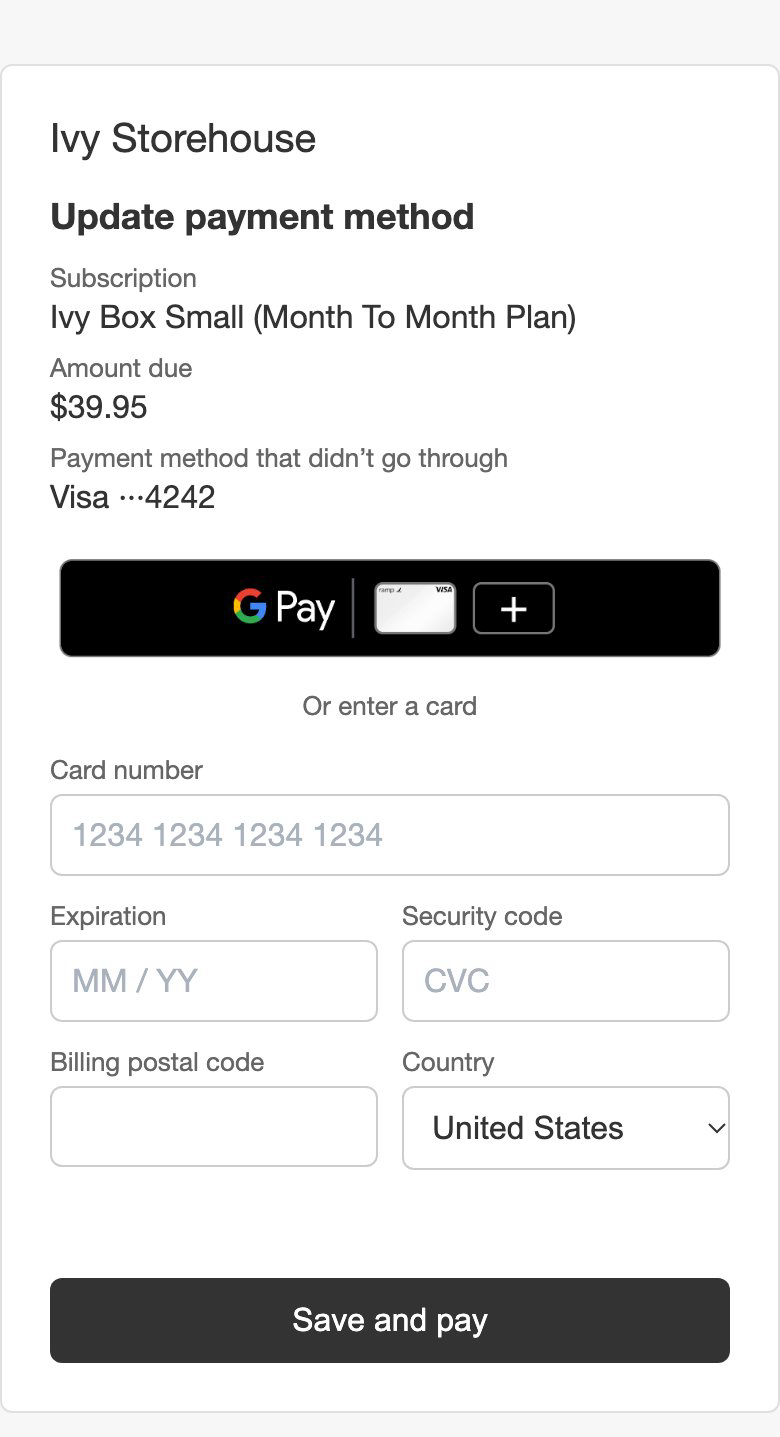
- They tap Save and pay. The missed renewal is charged now, the subscription stays active, and the new card is kept for that subscription’s later renewals.
The page is plain on purpose. It shows your store’s name but not your theme, so none of your theme’s scripts run on a payment page.
If You Use the Standard Renewal Failure Email
There’s nothing to do. The button is in the standard email, in both the HTML and text versions, for every store.
If You Wrote Your Own Renewal Failure Email
Your email keeps your words and design. Add the button where you want it:
- In your seller portal, click Platform Settings, then Notifications.
- Under Customer Emails, click Renewal Failure.
- In the HTML template, add a link or button whose address is
{{ update_payment_url }}, for example<a href="{{ update_payment_url }}">Update payment method</a>. - In the Text template, add the same placeholder on its own line, so customers reading plain text get the link too.
- Click Save.
Until you add the placeholder, your customers get your email exactly as before. See Customizing Notification Emails for the editor.
How the Link Works
- It opens the page for that one subscription and its failed renewal. Your customer’s other subscriptions keep their cards.
- It works for 7 days and for one update. A used, altered, or expired link opens your store’s normal login page and shows nothing about the subscription.
- A card saved through the link is kept for that subscription’s renewals, so the next renewal charges it without another email.
Common Questions
Does the button show for customers who pay on the Cratejoy Marketplace?
No. Marketplace customers update their card on cratejoy.com, as they do today. See Failed Renewals on the Marketplace.
My customer says the link doesn’t work.
A link is good for 7 days and one update. After that, or if it was already used, it opens your login page. Your customer can still update their card in their account.
Do I need Apple Pay and Google Pay turned on?
Only if you want the page to offer them. The page shows Apple Pay and Google Pay when Wallet Buttons is on for your store and the customer’s device has a wallet set up; otherwise it takes a typed card. See Offering Apple Pay and Google Pay at Checkout.
Related Articles
- Customizing Notification Emails
- Notification Email Variables
- Managing Customer Email Notifications
- Offering Apple Pay and Google Pay at Checkout
Questions? Contact support.
