
Apple Pay and Google Pay let your customers pay at checkout with a card already saved on their phone or computer. They confirm with Face ID, a fingerprint, or their passcode instead of typing a card number. You turn both on with one setting, Wallet Buttons, in Checkout Settings.
This setting is for your storefront checkout, your Cratejoy store’s own site. It doesn’t change checkout on the Cratejoy Marketplace.
In This Article
- Before You Start
- Turn On Apple Pay and Google Pay
- Check That They’re Ready
- What Your Customers See
- Turn Off Apple Pay and Google Pay
- Test Mode
- Common Questions
Before You Start
You can turn on Apple Pay and Google Pay when:
- Your store takes cards through Stripe or Cratejoy Payments.
- Your store uses the current Cratejoy checkout.
- You’re a store admin, or a team member who can open Checkout Settings.
If your store can’t use them yet, Checkout Settings shows the reason in place of the setting, with what to do next. Understanding Your Apple Pay and Google Pay Status explains each reason.
Turn On Apple Pay and Google Pay
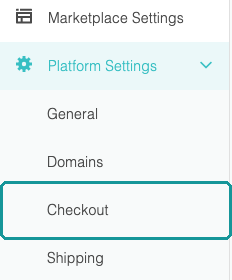
- In your seller portal, open Platform Settings and click Checkout.
- In the Express Checkout section at the top of the page, set Wallet Buttons to Show.
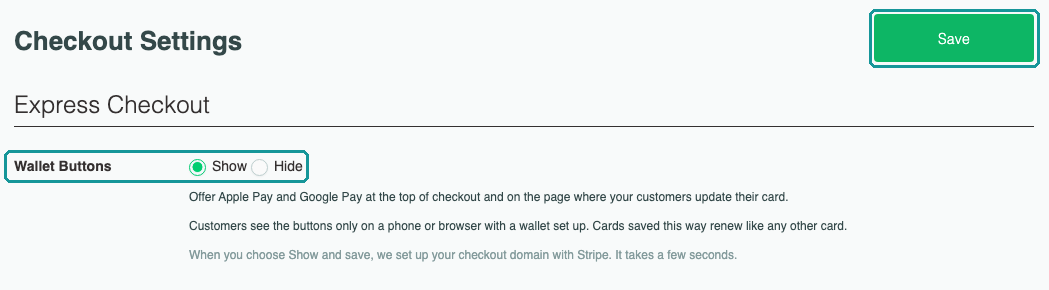
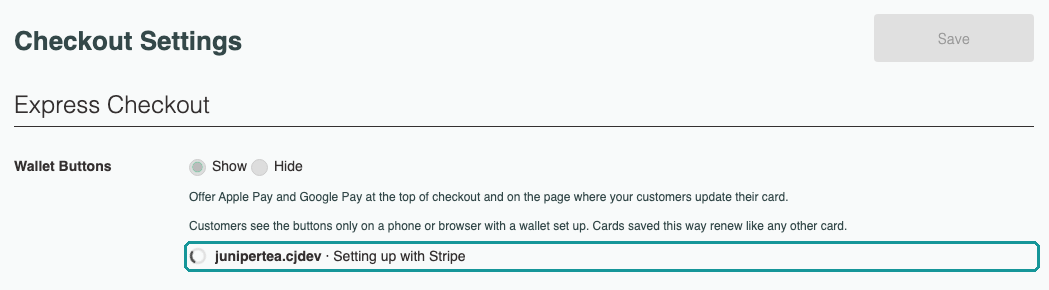
- Click Save. While we set up your checkout domain with Stripe, each domain shows “Setting up with Stripe.” This takes a few seconds.
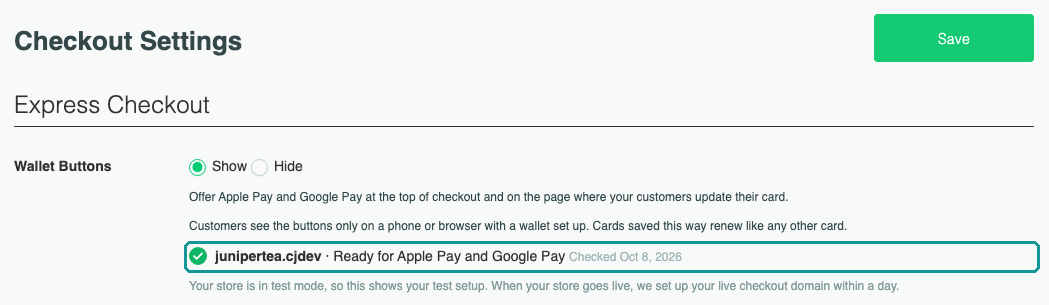
When setup finishes, each of your checkout domains gets a status line. Your other checkout settings save as usual, and “Saved checkout.” confirms them.
Check That They’re Ready
Each status line shows a checkout domain, which wallets are ready on it, and the date we last checked with Stripe.
- Ready for Apple Pay and Google Pay means customers with a wallet see both buttons on that domain.
- Right after you turn them on, one wallet can be ready before the other. Apple Pay can take longer, because Stripe verifies your domain before it approves Apple Pay. We check every day and update the line, so there’s nothing for you to do.
- If your store has a custom domain, you’ll see a line for each one, for example www.yourstore.com and yourstore.com.
Customers only see a wallet that’s ready on the domain they’re shopping on. For what each status means, see Understanding Your Apple Pay and Google Pay Status.
Team members who can’t open Checkout Settings can see the same status, read-only, under Account › Payment Processor.
What Your Customers See
Customers who have Apple Pay or Google Pay set up see the buttons at the top of checkout, under “Express checkout,” with the card form below.
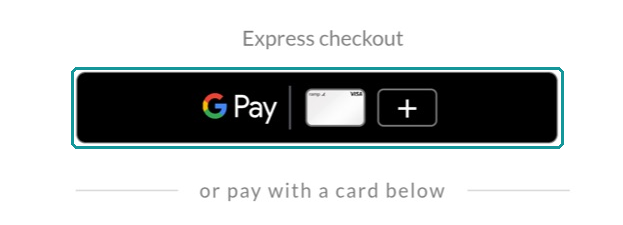
- Apple Pay shows in Safari on an iPhone, iPad, or Mac, and in other browsers on an iPhone or iPad, when Apple Pay is set up.
- Google Pay shows in Chrome, Edge, or Opera on a computer, and in Chrome on an Android phone, when the customer has a card saved to Google Pay.
- Customers without a wallet set up see your checkout as it is today.
Customers tap the button, confirm with Face ID, a fingerprint, or their passcode, and the order goes through. Unless the order is a gift, the wallet also fills in their contact details and shipping address, so there’s no form to complete. For a gift, customers fill in the gift details on the checkout form, then pay with the wallet.
The card they pay with is saved to their account, labeled Apple Pay or Google Pay, and it pays their renewals like any other card on file.
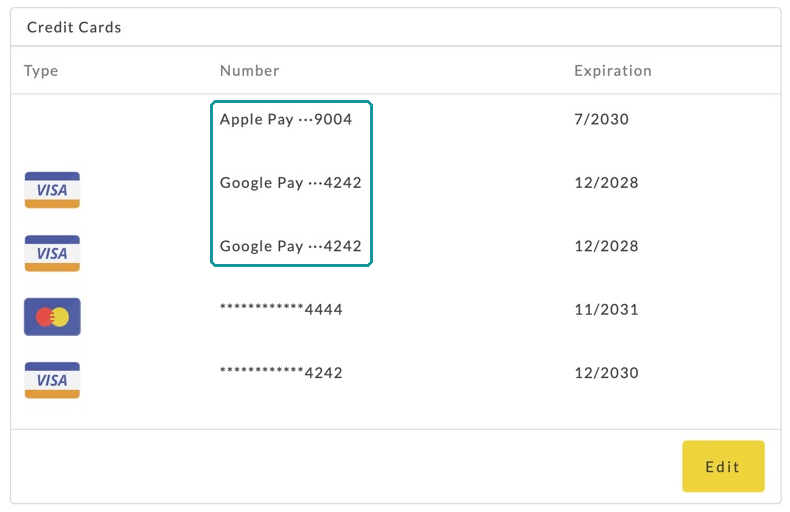
The same buttons show on the page where customers update the card in their account.
Turn Off Apple Pay and Google Pay
- Open Platform Settings › Checkout.
- Set Wallet Buttons to Hide.
- Click Save.
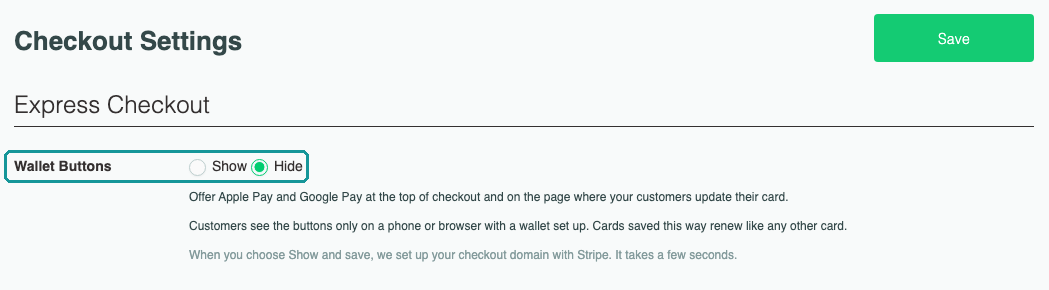
The buttons come off your checkout on the next page load. Cards your customers already saved with a wallet keep renewing. Your domain stays set up with Stripe, so turning them back on later is quick.
Test Mode
If your store is in test mode, the status shows your test setup, and wallet payments on your checkout are test payments with no real charge. When your store goes live, we set up your live checkout domain within a day.
Common Questions
Does it cost extra?
No. Apple Pay and Google Pay payments cost the same as card payments, at your usual processing rate. There’s no extra fee from Cratejoy or Stripe.
Will renewals still work?
Yes. A card saved with Apple Pay or Google Pay renews like any other card on file.
Do I need to change anything in Stripe?
No. When you save, we set up your checkout domain with Stripe for you, and we check it every day after that.
Why don’t I see the buttons on my checkout?
Check that:
- Wallet Buttons is set to Show, and you clicked Save.
- The status line for the domain you’re on says that wallet is ready.
- Your phone or browser can show that wallet, with a card in it. Apple Pay doesn’t show in Chrome on a computer, and Google Pay doesn’t show in Safari.
Then reload your checkout page. For the full checklist, see Apple Pay or Google Pay Not Showing at Checkout.
Does turning them on change anything else?
No. Wallet Buttons changes nothing else in Checkout Settings, and nothing about cards your customers already saved.
Related Articles
- Understanding Your Apple Pay and Google Pay Status
- Apple Pay or Google Pay Not Showing at Checkout
- How to Connect to Stripe
- Cratejoy Payments FAQ
Questions? Contact support.