
When Wallet Buttons is set to Show, Checkout Settings shows a status line for each of your checkout domains. This article explains each status, what to do when Apple Pay and Google Pay aren’t available for your store, and what to do if a save doesn’t go through. To turn them on, see Offering Apple Pay and Google Pay at Checkout.
In This Article
- Where to Find Your Status
- What Each Status Means
- Test Mode and Going Live
- When Apple Pay and Google Pay Aren’t Available
- If a Save Doesn’t Go Through
Where to Find Your Status
- Platform Settings › Checkout, under Wallet Buttons: one line per checkout domain, with the date we last checked with Stripe.
- Account › Payment Processor: the same status in a table, read-only, with a link to Checkout Settings. Team members who can open Payment Processor but not Checkout Settings see “A store admin can change this in Checkout Settings.” in place of the link.
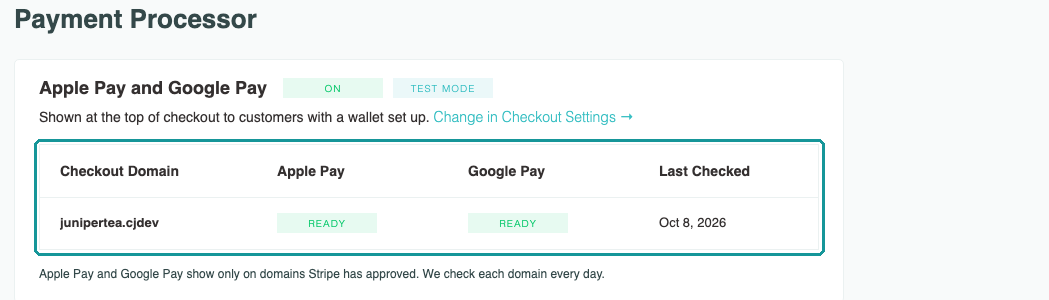
We check each of your checkout domains once a day, so the status updates on its own, including when Stripe approves a wallet, when you add a domain, and when your store goes live.
What Each Status Means
Ready for Apple Pay and Google Pay
Stripe approved both wallets for this domain. Customers with a wallet set up see both buttons.
What to do: nothing.
Ready for Google Pay. Apple Pay isn’t ready: Stripe hasn’t approved this domain yet.
One wallet is approved for this domain, and customers see that one. It can be either wallet. This is common right after you turn them on, because Stripe verifies your domain before it approves Apple Pay.

What to do: nothing. We check again every day, and the line updates when Stripe approves the other wallet.
Not ready: Stripe hasn’t approved this domain yet. We check again every day.
Stripe hasn’t approved either wallet for this domain yet, so customers don’t see the buttons there.

What to do: nothing at first. If it still says this after a few days, contact support.
Turned off at Stripe. Contact support to turn it back on.
This domain is switched off in Stripe, so neither wallet shows on it.

What to do: contact support with the link in the message, and we’ll turn it back on.
We couldn’t reach Stripe to check this domain. We’ll try again within a day.
We asked Stripe about this domain and didn’t get an answer, for example during a Stripe outage.

What to do: nothing. We try again automatically.
Not set up yet. We check every day.
We don’t have an answer from Stripe for this domain yet. You’ll see this for a domain you just added, or for a moment right after you save.

What to do: right after a save, reload the page in a minute. Otherwise our daily check sets it up.
Test Mode and Going Live
In test mode, the status shows your test setup, with this note under the status lines: “Your store is in test mode, so this shows your test setup. When your store goes live, we set up your live checkout domain within a day.” Wallet payments in test mode are test payments with no real charge.
After your store goes live, your live domain can show “Not set up yet” for up to a day. That’s expected.
When Apple Pay and Google Pay Aren’t Available
If your store can’t show Apple Pay and Google Pay yet, Checkout Settings shows “Apple Pay and Google Pay aren’t available on your checkout yet.” in place of the setting, with the reason and what to do.

| The message says | What to do |
|---|---|
| Your store uses an older checkout that can’t show them. | Contact support to check whether your store can use Apple Pay and Google Pay. |
| They need Stripe or Cratejoy Payments to take cards on your checkout. | Connect Stripe or Cratejoy Payments under Account › Payment Processor. See How to Connect to Stripe. |
| Your Stripe or Cratejoy Payments connection isn’t active for your storefront. | Contact support to turn it on. |
| Your checkout takes cards through another processor first. | Contact support to switch your checkout to Stripe. |
If your store has an active payment processor, Account › Payment Processor shows the same reason, marked Not available.
If a Save Doesn’t Go Through
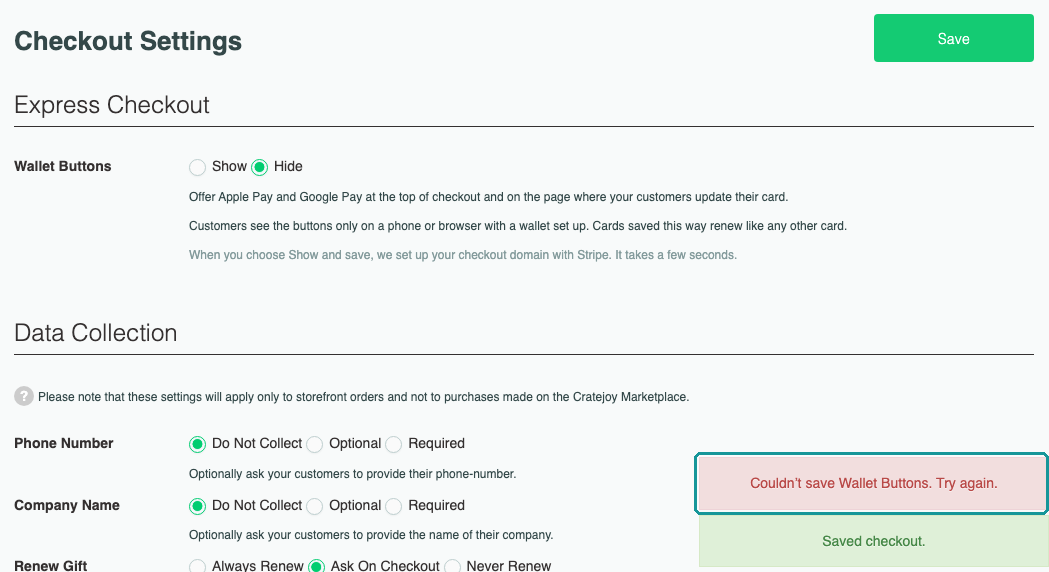
“Couldn’t save Wallet Buttons. Try again.”
Your Wallet Buttons choice wasn’t saved, for example because your connection dropped. The setting shows what’s saved. Click Save again. “Saved checkout.” can still appear, because it confirms your other checkout settings, which save separately.
“This is taking longer than usual. Reload the page in a minute to see the result.”
Your choice was saved, but Stripe is slow to answer. Reload the page in a minute to see your status.

Related Articles
- Offering Apple Pay and Google Pay at Checkout
- Apple Pay or Google Pay Not Showing at Checkout
- How to Connect to Stripe
Still stuck? Contact support with your store name and the message you see.