
If you’ve turned on Apple Pay and Google Pay but you or a customer don’t see the buttons at checkout, work through these checks in order. Most of the time the answer is the browser, or a wallet without a card in it.
In This Article
- Check Your Settings
- Check the Device and Browser
- Check the Wallet
- Other Things That Hide the Buttons
- Still Not Showing
Check Your Settings
- Open Platform Settings › Checkout and check that Wallet Buttons is set to Show. If you just changed it, click Save.
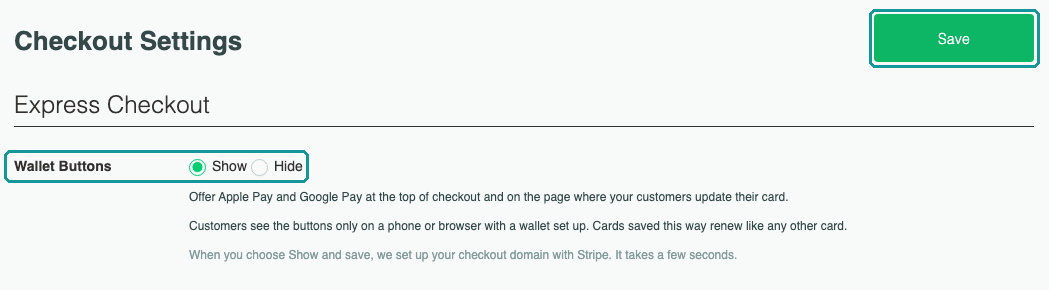
- Read the status line for the domain you’re checking out on. A wallet only shows on a domain where its line says it’s ready. If your store has a custom domain, www.yourstore.com and yourstore.com each have their own line. Understanding Your Apple Pay and Google Pay Status explains each line.

- Reload the checkout page. The buttons appear on the next page load after you save.
Check the Device and Browser
Each wallet shows only in certain browsers.
| Wallet | Shows in | Doesn’t show in |
|---|---|---|
| Apple Pay | Safari on an iPhone, iPad, or Mac. Other browsers on an iPhone or iPad. | Chrome, Edge, or Firefox on a Mac or Windows computer. Android phones. |
| Google Pay | Chrome, Edge, or Opera on a computer. Chrome on an Android phone. | Safari. Firefox. Any browser on an iPhone or iPad. |
A Mac without Touch ID can still pay with Apple Pay by confirming on a nearby iPhone or Apple Watch.
Check the Wallet
- Apple Pay needs a card in Apple Wallet on the iPhone, iPad, or Mac, or on the iPhone or Apple Watch the Mac confirms with.
- Google Pay needs a card saved to the customer’s Google account in Google Wallet.
- Safari’s privacy setting. Safari can stop sites from checking for Apple Pay (on a Mac, the setting reads “Allow websites to check for Apple Pay and Apple Card”). When it’s off, Apple Pay doesn’t show.
Customers without a wallet set up see your checkout as it is today, with the card form.
Other Things That Hide the Buttons
- Private or incognito windows. The buttons may not show in a private window. Try a normal one.
- Browsers inside other apps. A link opened inside Instagram, Facebook, or TikTok may not show the buttons. Opening the page in Safari or Chrome does.
- Test mode. In test mode, the wallet still needs a real card saved in it before the button shows. Payments are test payments with no real charge.
Still Not Showing
Contact support with your store name, the checkout page’s address, the device and browser you used, and the status line you see in Checkout Settings.