
Upload Renewal Dates, Skips, Cancellations… changes many subscriptions from one CSV file: move a renewal to a new date, skip the next renewal, or cancel. Before anything changes, every row is checked and you see what will happen to each subscription. The rows you confirm apply in the background, each checked again before it applies, and the upload’s page shows every row’s result.
Cratejoy turns uploads on store by store. If the Action menu on your Subscriptions page doesn’t show Upload Renewal Dates, Skips, Cancellations…, your store doesn’t have it yet. To change one subscription’s renewal date, see Changing a Customer’s Renewal Date.
In This Article
- Before You Start
- Get the Template
- Fill In Your File
- Step 1: Your File
- Step 2: Every Row Checked
- Step 3: Shipments and the Email
- Step 4: Review and Apply
- What Your Subscribers Get
- Common Questions
Before You Start
- Store admins can upload. A team member needs the Bulk Changes role, which a store admin adds under Account › Team, as Changing the Product or Price for Many Subscribers shows.
- Dates in an upload are the day of the morning renewal run, which starts at 5am UTC. In US time zones that’s late the evening before, or shortly after midnight, so where your store’s time zone gives another day, the template and the review show your day too.
- A move’s new date must be tomorrow or later, counted in UTC days.
- Applying an upload charges no one. Each subscriber is charged at their renewal, on its new date, as usual.
Get the Template
- In your seller portal, click Subscriptions.
- Use the filters and search to show the subscriptions your file is for, for example Subscription Status set to Active, or Product set to one product. The template has a row for every subscription the list shows.
- Click Action, then Upload Renewal Dates, Skips, Cancellations….
- Click Download the template (CSV).
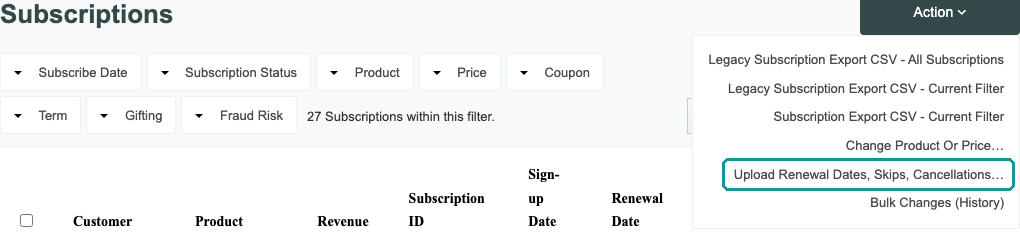
We build the template in the background. The bar at the top of the page reads “Renewal Upload Template - This export is in progress.”, then “Renewal Upload Template - Export Complete! Download now”. Click Download now. We also email you a link, with the subject “Renewal Upload Template export is complete!”.
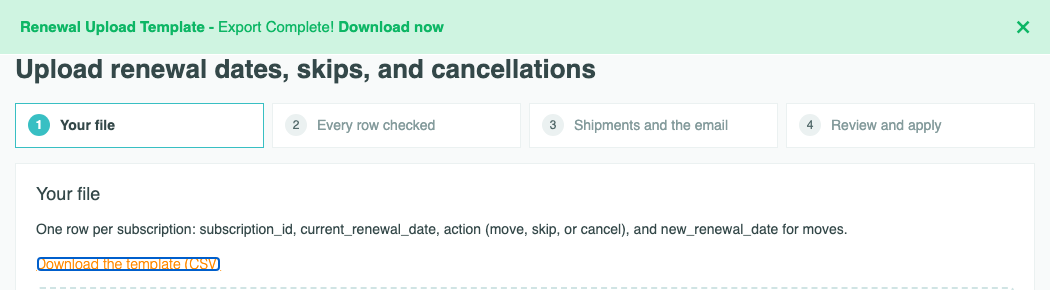
The template’s columns:
| Column | What it holds |
|---|---|
| subscription_id | The subscription. Leave it as it is. |
| current_renewal_date | The day it renews now, for example 2026-11-01. The upload checks it against the subscription, so a row from an old file can’t move a renewal that has changed since. |
| action | Blank. Type move, skip, or cancel. |
| new_renewal_date | Blank. For a move, type its new date. Leave it blank for a skip or a cancel. |
| customer name, customer email, product, term, status | To help you find each subscriber. The upload doesn’t read them. |
| prepaid paid through | For a prepaid subscriber, the day their paid term ends. Moving them before that day charges them early, so step 2 asks for your OK. |
| renews in your time zone on | The day it renews in your store’s time zone, when that’s a different day. |
Start from the template rather than the Subscription Export. The export’s dates are in your store’s time zone, and the upload checks the day of the renewal run.
Fill In Your File
For each subscription you want to change, type an action:
| Action | What happens |
|---|---|
| move | “The next renewal moves to the date on the row.” Type the date in new_renewal_date. |
| skip | “The next renewal moves one paid term, like the customer’s own Skip.” For a monthly subscriber that’s a month, and for a 3 Month Prepay subscriber, 3 months. |
| cancel | “No more renewals. Shipments already paid for still go out.” |
- Each row its own date. One file can move each subscription to a different date.
- Dates: 2026-11-20, or month first with a four-digit year, 11/20/2026. When you open the template, Excel may show its dates as 11/20/2026, and that’s fine.
- Rows you don’t want to change: leave their action blank, or delete them. A row with no action changes nothing.
- Each subscription once. If a subscription is on two rows, only the first counts.
- Your own file works too, if it has the four columns subscription_id, current_renewal_date, action, and new_renewal_date, in any order. Other columns are ignored.
- Save it as a CSV. In Excel, choose Save As, then CSV UTF-8 (Comma delimited). In Google Sheets, download it as a CSV under File › Download. An Excel workbook (.xlsx) can’t be uploaded.
- A file can hold up to 25,000 rows and 10 MB.
Step 1: Your File
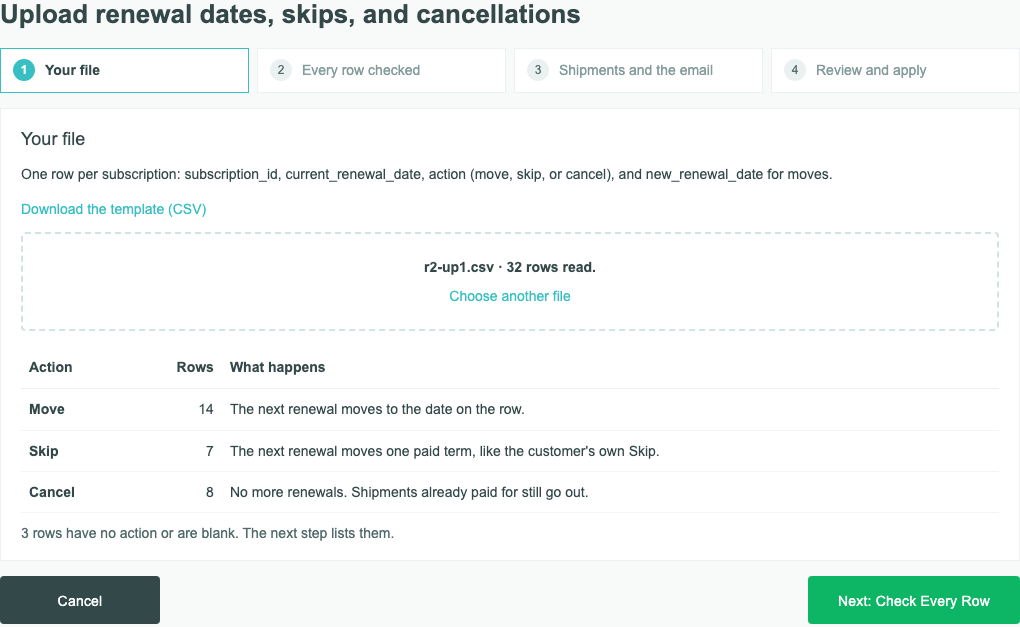
- Click Choose File and pick your file, or drag it onto the dashed area.
- Step 1 reads it and shows, for example, “r2-up1.csv · 32 rows read.”, how many rows move, skip, and cancel, and how many have no action. Nothing is saved yet. To use a different file, click Choose another file.
- Click Next: Check Every Row.
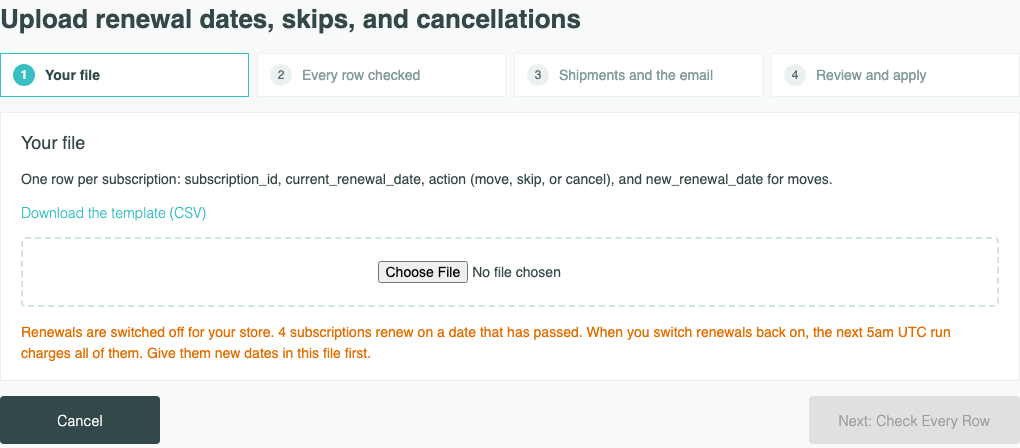
If the file can’t be used, a red line under Choose File says why, and nothing is saved:
- “This is an Excel file. Save it as CSV UTF-8 (Comma delimited) and upload that.”
- “This file isn’t saved as UTF-8. Save it as CSV UTF-8 (Comma delimited) and upload it again.”
- “Upload a CSV with no more than 25,000 data rows and a file size of 10 MB or less.”
- “Add these columns: current_renewal_date, new_renewal_date. Start from the template.”
- “The column action appears more than once. Keep one and upload the file again.”
- “This file couldn’t be read as CSV. Save it as CSV UTF-8 (Comma delimited) and upload it again.”
- “This file has no subscription rows.”
Renewals switched off. If you’ve switched off renewals for your whole store, step 1 counts the subscriptions whose renewal date has passed, for example “Renewals are switched off for your store. 4 subscriptions renew on a date that has passed. When you switch renewals back on, the next 5am UTC run charges all of them. Give them new dates in this file first.”
Step 2: Every Row Checked
We check every row in the background, and a bar shows how far along it is, for example “0 of 5 rows checked.” You can leave the page: the upload waits as a Draft under Action › Bulk Changes (History).
Each row then lands in one of four groups, and the counts add up to the rows in your file:
| Group | What it means |
|---|---|
| Ready | It applies when you confirm in step 4. |
| Wait | “Renewing right now. Checked again when that finishes.” |
| Need your OK | The move would charge the subscriber early. It’s left out unless you approve it below the list. |
| Can’t change | It’s left out, with the reason, and nothing changes for that subscription. |
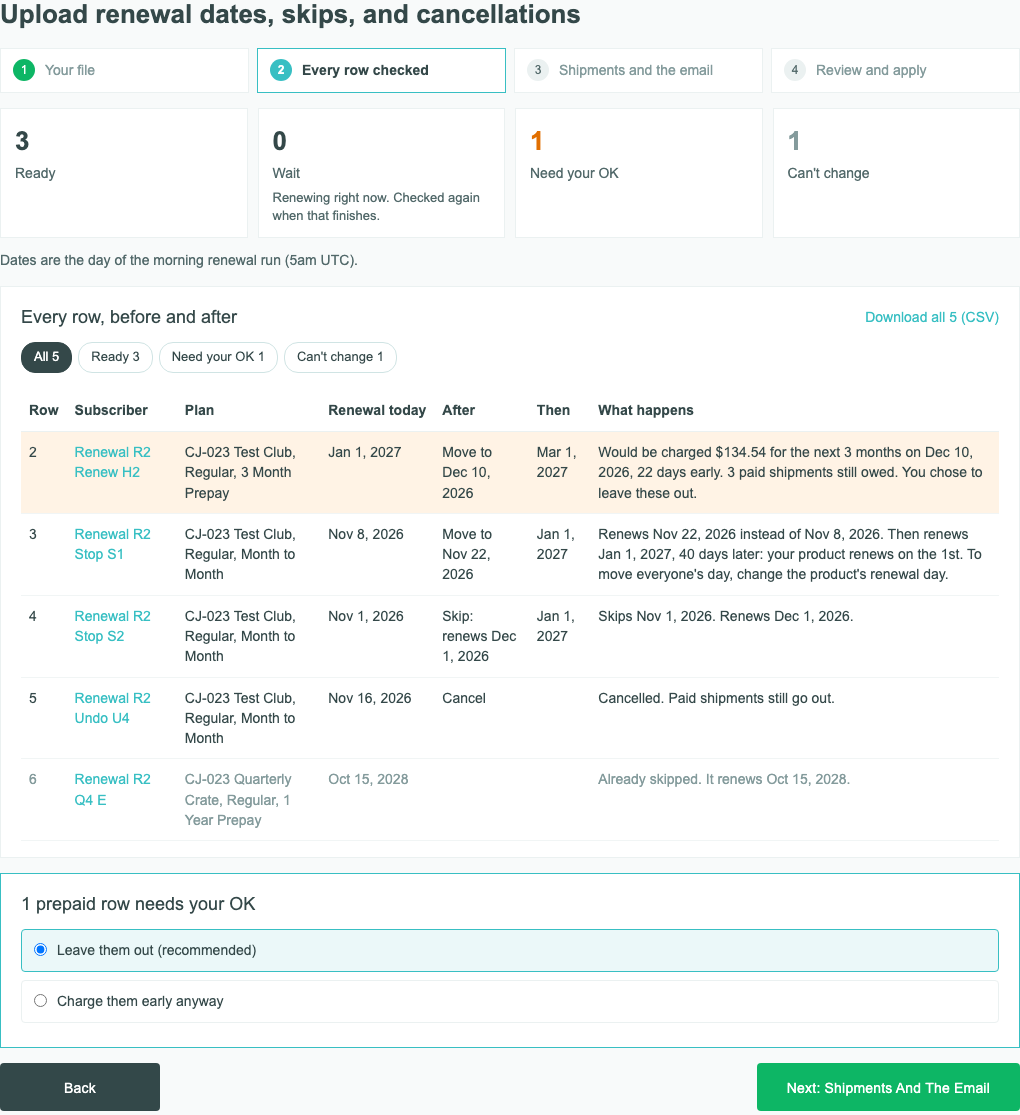
Under Every row, before and after, each row shows its line in your file, the subscriber, their plan, Renewal today, After (what the row makes it), Then (the renewal after that), and What happens, or why it can’t change. The pills above the list show one group at a time, and Download all with your count, for example Download all 5 (CSV), saves every row.
A move that would charge a prepaid subscriber before their paid term ends, or charge anyone a second time within half a billing cycle, shows the amount and needs your OK. Under the list, each kind has its own choice, for example “1 prepaid row needs your OK”: Leave them out (recommended), already chosen, or Charge them early anyway. For what each row says and every reason a row can’t change, see Reviewing an Upload: Early Charges and Rows That Can’t Change.
Click Next: Shipments And The Email.
Step 3: Shipments and the Email
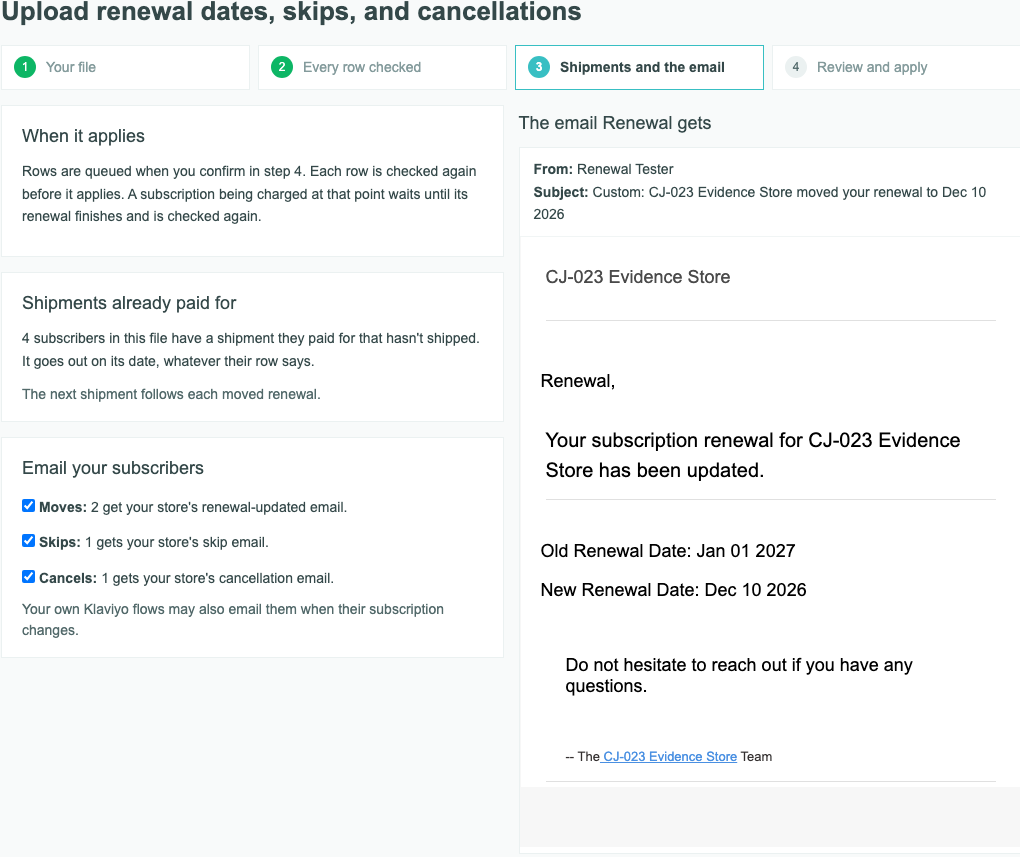
- When it applies: “Rows are queued when you confirm in step 4. Each row is checked again before it applies. A subscription being charged at that point waits until its renewal finishes and is checked again.”
- Shipments already paid for: a shipment a subscriber paid for that hasn’t shipped goes out on its date, whatever their row says, and the page counts them. “The next shipment follows each moved renewal.”
- Email your subscribers: each action sends your store’s own email, where you have it on under Platform Settings › Notifications. A move sends Subscription Renewal Updated by Seller, a skip Subscription Renewal Skipped, and a cancel Cancelled Subscription, with your wording. Each line says how many get one, for example “Moves: 2 get your store’s renewal-updated email.” Untick a line to send none for that action. An email your store has off can’t be ticked: “Cancels: your store’s cancellation email is off, so 1 gets none.”
On the right is each email as the first subscriber in your file will get it. Subscribers who signed up on cratejoy.com get cratejoy.com’s own message for a move or a skip, when your email for that action is on, and no cancellation email. Your own Klaviyo flows may also email subscribers when their subscription changes.
Click Next: Review And Apply.
Step 4: Review and Apply
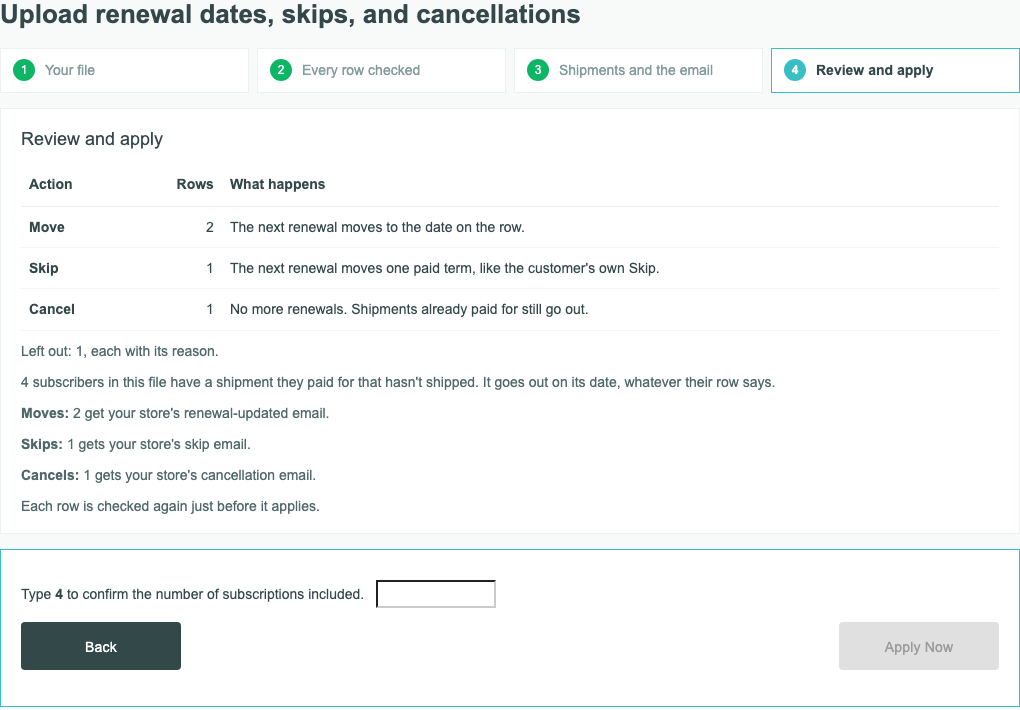
Step 4 sums up what will apply: the rows per action, “Left out: 1, each with its reason.”, the shipments, and each email that will go.
- Type the number shown, for example in “Type 4 to confirm the number of subscriptions included.”
- Click Apply Now.
The upload’s page opens and its rows start to apply in the background. A large file can take a while. To follow it, see Tracking an Upload: Results, Retry, Stop, and Undo.
If no row can apply, step 4 says “There are no rows to apply. Review the rows left out or upload another file.”
What Your Subscribers Get
- The email for their row, if it’s on and ticked in step 3.
- After a skip, their account offers “Click to Un-skip!”, as after their own Skip.
- A move clears a skip they had pending, so their account offers Skip Next Renewal again.
- Their next charge comes at their renewal, on the new date. A skipped renewal isn’t charged, and a cancelled subscription doesn’t renew.
Common Questions
Does applying an upload charge anyone?
No. It changes renewal dates and statuses only. Each subscriber is charged at their renewal, on the new date, as usual. A move to an earlier date brings that charge earlier, which is why early charges need your OK in step 2.
What if I upload the same file twice?
The second time, rows that already changed can’t change: “It renews Dec 1, 2026 now, not Nov 1, 2026 as in your file. Download a fresh template.” So a file can’t move anyone twice.
How do I move a renewal by one month?
Use move with the date a month later. Skip moves the next renewal one paid term, which for a prepaid subscriber is their whole term.
Can I upload while a product or price change is scheduled?
Yes. An upload doesn’t take your store’s one scheduled change. If a scheduled change and an upload’s row reach the same renewal, the change goes first and the row is left out, saying what changed.
Why don’t I see Upload Renewal Dates, Skips, Cancellations…?
Store admins and team members with the Bulk Changes role see it, at stores where Cratejoy has turned uploads on.
Related Articles
- Reviewing an Upload: Early Charges and Rows That Can’t Change
- Tracking an Upload: Results, Retry, Stop, and Undo
- Changing a Customer’s Renewal Date
- Changing the Product or Price for Many Subscribers
Questions? Contact support.